

Capabilities
| Resource | Sync | Provision |
|---|---|---|
| IAM and Identity Center user accounts | ||
| IAM roles | ||
| IAM groups | ||
| IAM accounts | ||
| Identity Center groups | ||
| Accounts via Permission Sets | * | |
| Secrets - Access keys |
Gather AWS credentials
Configuring the connector requires you to pass in credentials generated in AWS. Gather these credentials before you move on. Follow the relevant set of instructions below to set up the AWS connector for IAM or SSO, as your configuration dictates.- IAM setup
- SSO setup
IAM setup: Gather credentials that support syncing child account data
To sync IAM data (like users, roles, and groups) from multiple AWS child accounts, ConductorOne uses a secure, read-only mechanism called cross-account access. This setup works by allowing a central role in your root account to temporarily assume a specific role in each child account. This method ensures that the connector can gather the necessary data without storing credentials or requiring permanent access.If you’re using this setup, make sure to click Enable support for AWS Organizations when setting up the connector in the ConductorOne web UI, and DO NOT click Enable support for AWS IAM Identity Center or Enable usage of the AWS IAM Identity Center SCIM API.In order to use the connector to gather IAM AWS data, you’ll need to configure each sub-account to have a role with a trust policy. There are two options here:- Use
OrganizationAccountAccessRole, and add the following to the management role:{ "Effect": "Allow", "Action": "sts:AssumeRole", "Resource": "arn:aws:iam::*:role/OrganizationAccountAccessRole" } - Create a new custom role by following the steps below
Get a ConductorOne-provided External ID
AWS requires the use of External IDs when granting third-party access to your AWS account. This security measure prevents the “confused deputy” problem and ensures that only authorized parties can assume the role.Choose how to set up the new AWS connector:
- Add the connector to a currently unmanaged app (select from the list of apps that were discovered in your identity, SSO, or federation provider that aren’t yet managed with ConductorOne)
- Add the connector to a managed app (select from the list of existing managed apps)
- Create a new managed app
Set the owner for this connector. You can manage the connector yourself, or choose someone else from the list of ConductorOne users. Setting multiple owners is allowed.
If you choose someone else, ConductorOne will notify the new connector owner by email that their help is needed to complete the setup process.
Create a custom IAM role
This custom role acts as a bridge, allowing ConductorOne to securely access your child account. The trust policy you’re about to create is the key to this connection.Navigate to the IAM Dashboard and select Roles > Create Role.
Select Custom Trust Policy and paste the following into the Trust Policy JSON editor, replacing Notes on the Trust Policy:
“Action”: “sts:AssumeRole”: This is the core permission. It’s the only action allowed by this policy, and it specifically allows the ConductorOne role in your root account to temporarily assume this role in the child account. Think of it like a temporary key that only the main account can use.
“Principal”: “arn:aws:iam::
{ROOT_ID} with the root ID from the main account and EXTERNAL_ID_FROM_C1_INTEGRATIONS_PAGE with the External ID you copied from ConductorOne.{ROOT\_ID}:role/ConductorOneService”: This is the trusted entity. It specifies that only the ConductorOne role in your main root account is allowed to assume this role. This ensures that no other account can use this trust policy.
“Condition”: “sts:ExternalId”: The External ID acts as a shared identifier between you and ConductorOne, confirming which trust relationship is being used. This helps prevent the “confused deputy” problem by ensuring the request is coming from the expected context. Learn more about granting access using External IDs.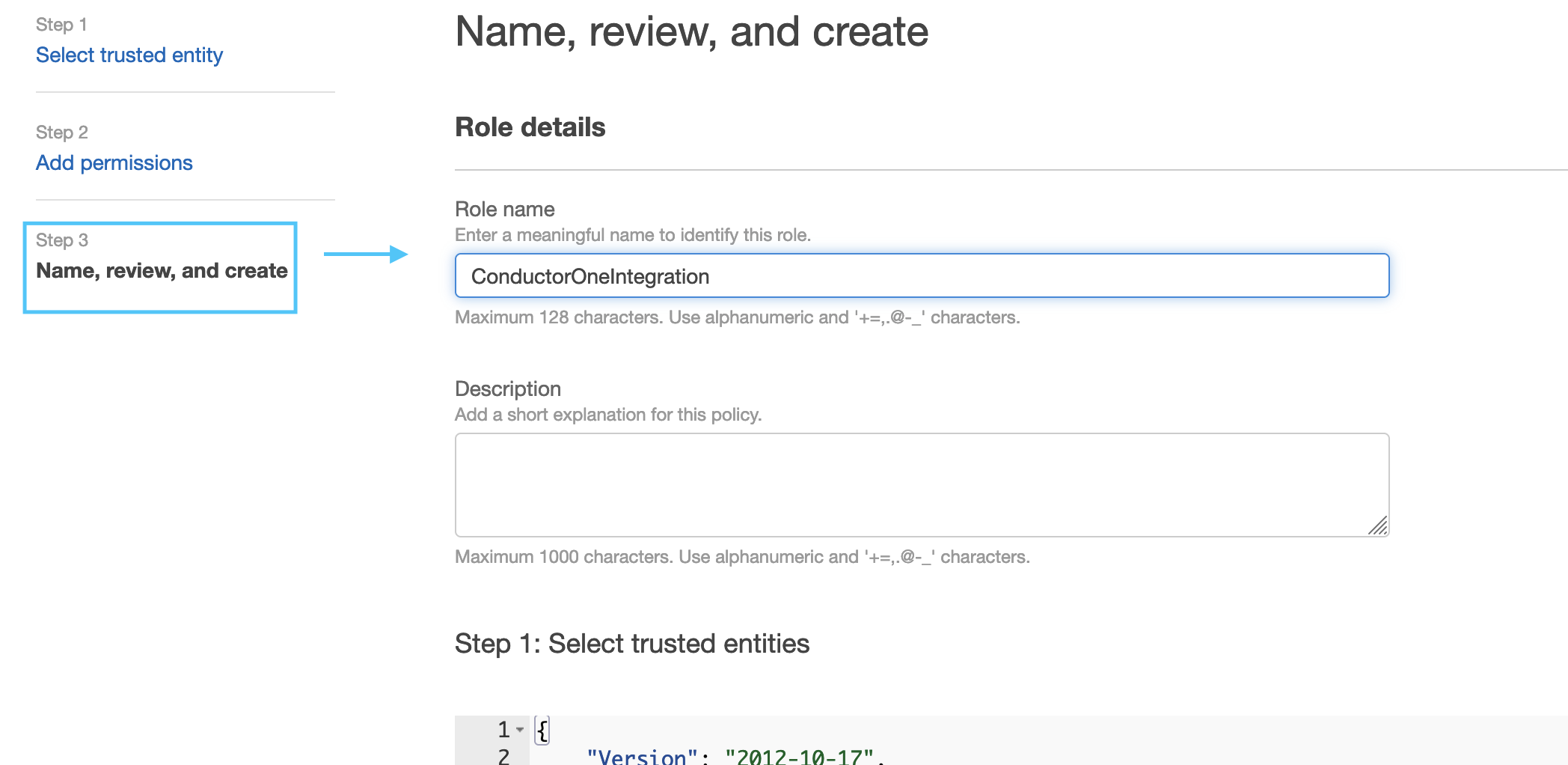
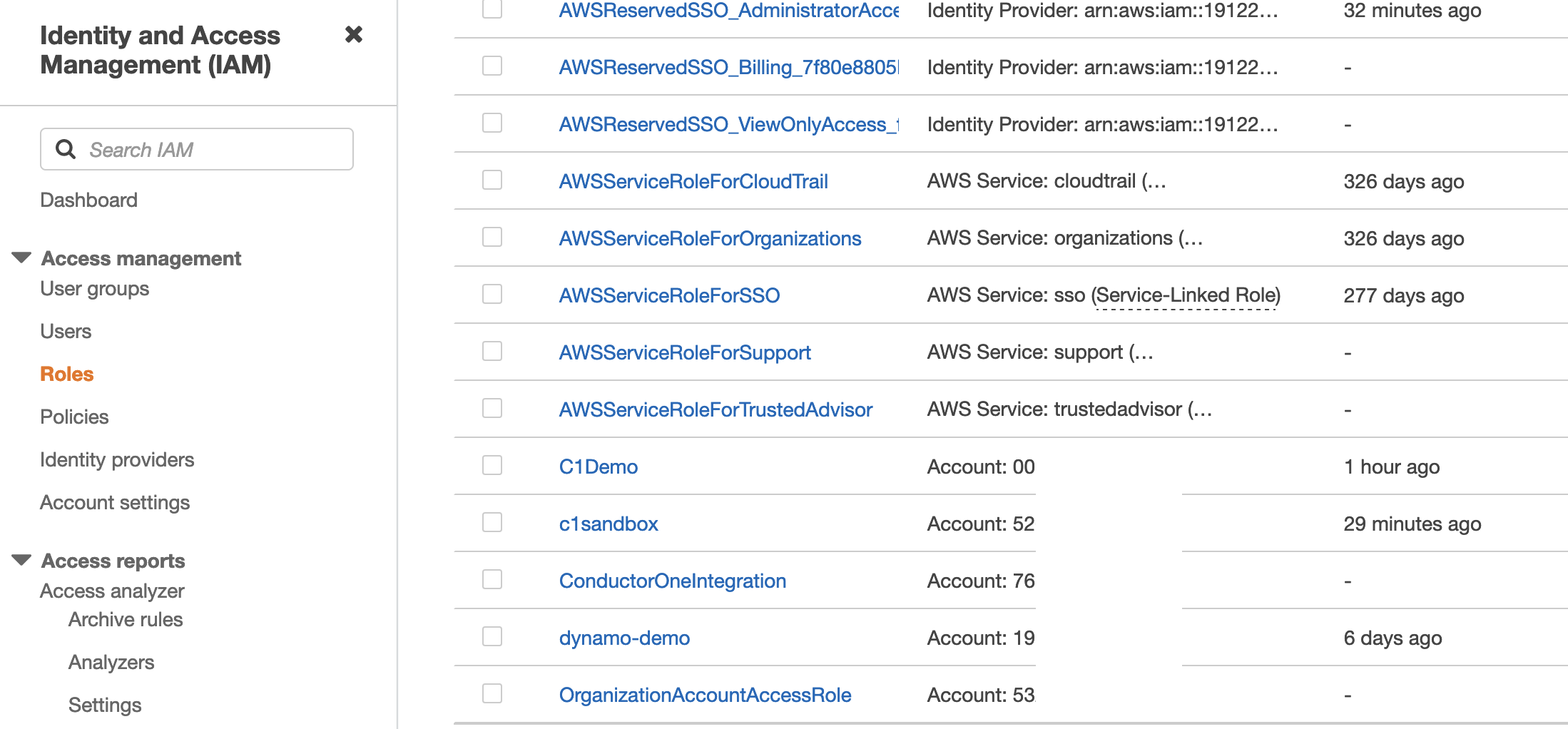
Grant permission for data sync
Next, you will create an inline policy to define the specific data this role can gather from the child account. These are read-only permissions that enable ConductorOne to securely sync your IAM data.Switch to the JSON Editor tab and paste the following policy into the editor:Explanation of permissionsCore IAM Permissions These permissions allow ConductorOne to sync your basic identity structure.
- iam:ListUsers: Allows ConductorOne to retrieve a list of all IAM user accounts.
- iam:ListGroups: Allows ConductorOne to retrieve a list of all IAM groups.
- iam:ListRoles: Allows ConductorOne to retrieve a list of all IAM roles.
- iam:GetGroup: Required to see which users belong to which groups. ListGroups only provides the group names, while GetGroup identifies the specific members.
- iam:GetRole: Allows ConductorOne to retrieve detailed information about specific roles, including their trust relationships.
- iam:ListAccessKeys and iam:GetAccessKeyLastUsed: These allow ConductorOne to gather data on the status of your IAM access keys, such as when they were last used. This is useful for identifying unused or stale credentials. Note that ConductorOne only retrieves metadata for auditing; it does not store or access the secret access keys themselves.
- organizations:ListAccounts: Allows the connector to discover all accounts within your AWS Organization.
- organizations:DescribeOrganization: Provides high-level details about your organization to ensure proper mapping.
- iam:ListAccountAliases: Include this if you prefer to use human-readable account aliases (for example, “Production-Environment”) in the ConductorOne UI instead of 12-digit numeric AWS account IDs.
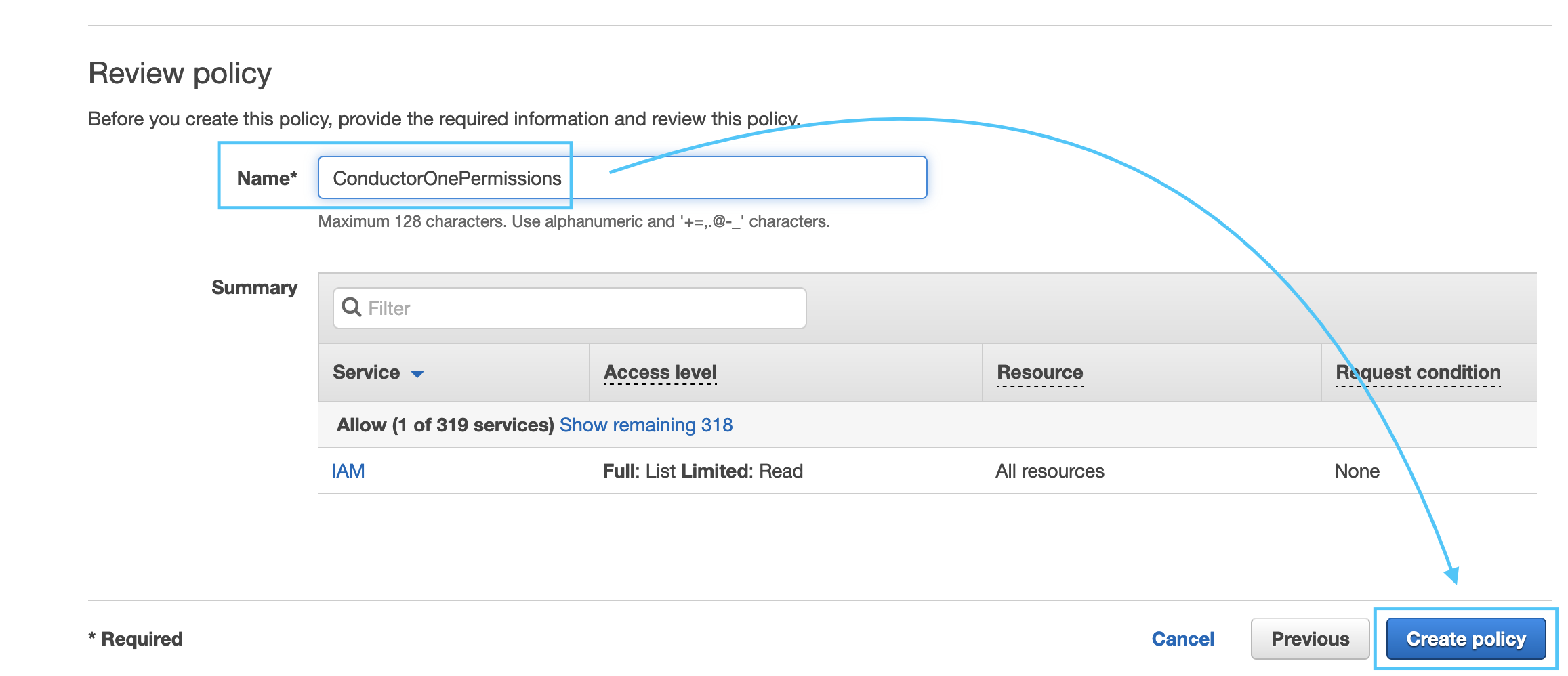
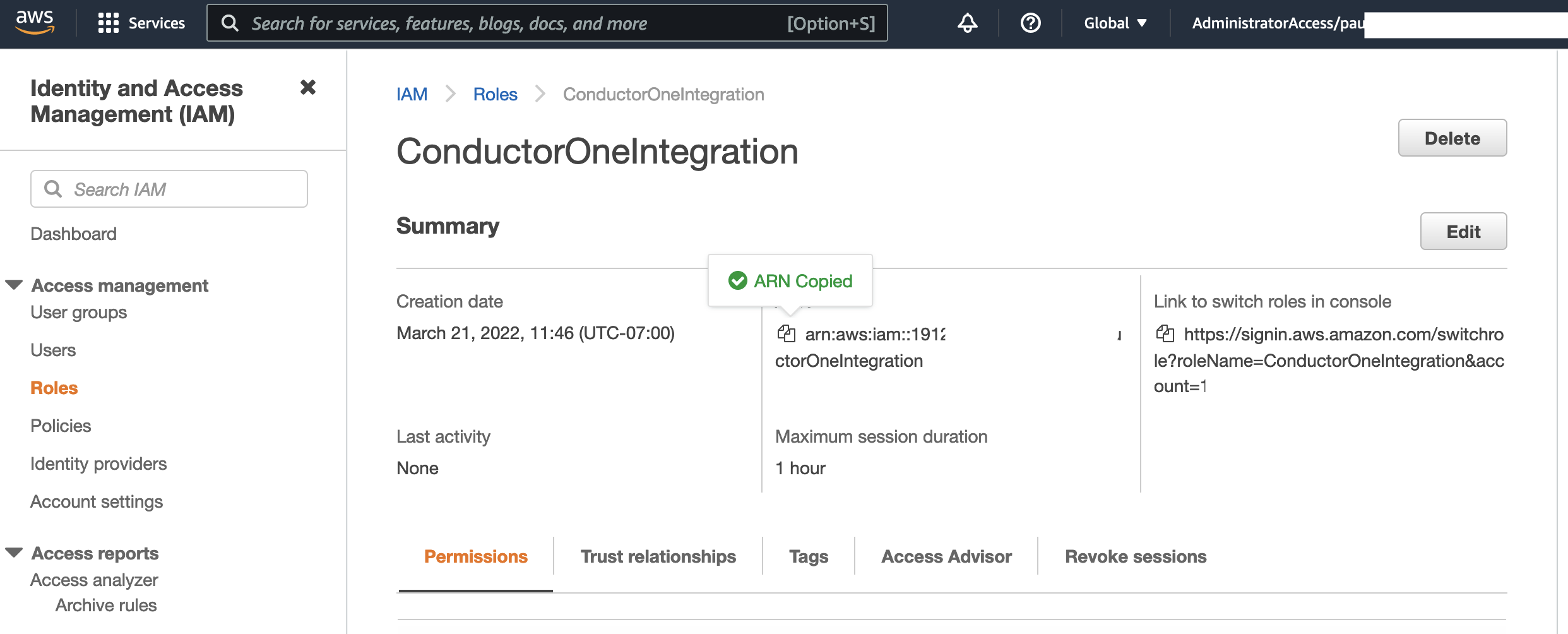
Configure the AWS connector
- Cloud-hosted
- Self-hosted
- Terraform
Follow these instructions to use a built-in, no-code connector hosted by ConductorOne.That’s it! Your AWS connector is now pulling access data into ConductorOne.
Optional. Click to Enable support for AWS Organizations.
If support for AWS Organizations is enabled, the IAM Role (as described in Step 2) must be created in the management (formerly called master) account of the AWS Organization. If the IAM Role is created on a member account and support for AWS Organizations is enabled, the integration will return a 400 error.
Optional. Click to Enable support for AWS IAM Identity Center and select the region for AWS IAM Identity Center from the dropdown.
Optional. To enable ConductorOne to sync the statuses of SSO accounts, click to Enable usage of the AWS IAM Identity Center SCIM API and enter the SCIM endpoint and access token in the relevant fields.
Optional. Enable Sync secrets to display them on the Inventory page.