View all resources, identities, and select secrets
The Inventory page gives you a single-pane-of-glass view of all the identities and resources synced to ConductorOne, as well as insight into key sensitive credentials generated in select integrations. Use the sort and filter tools on each tab to quickly zero in on the info you need.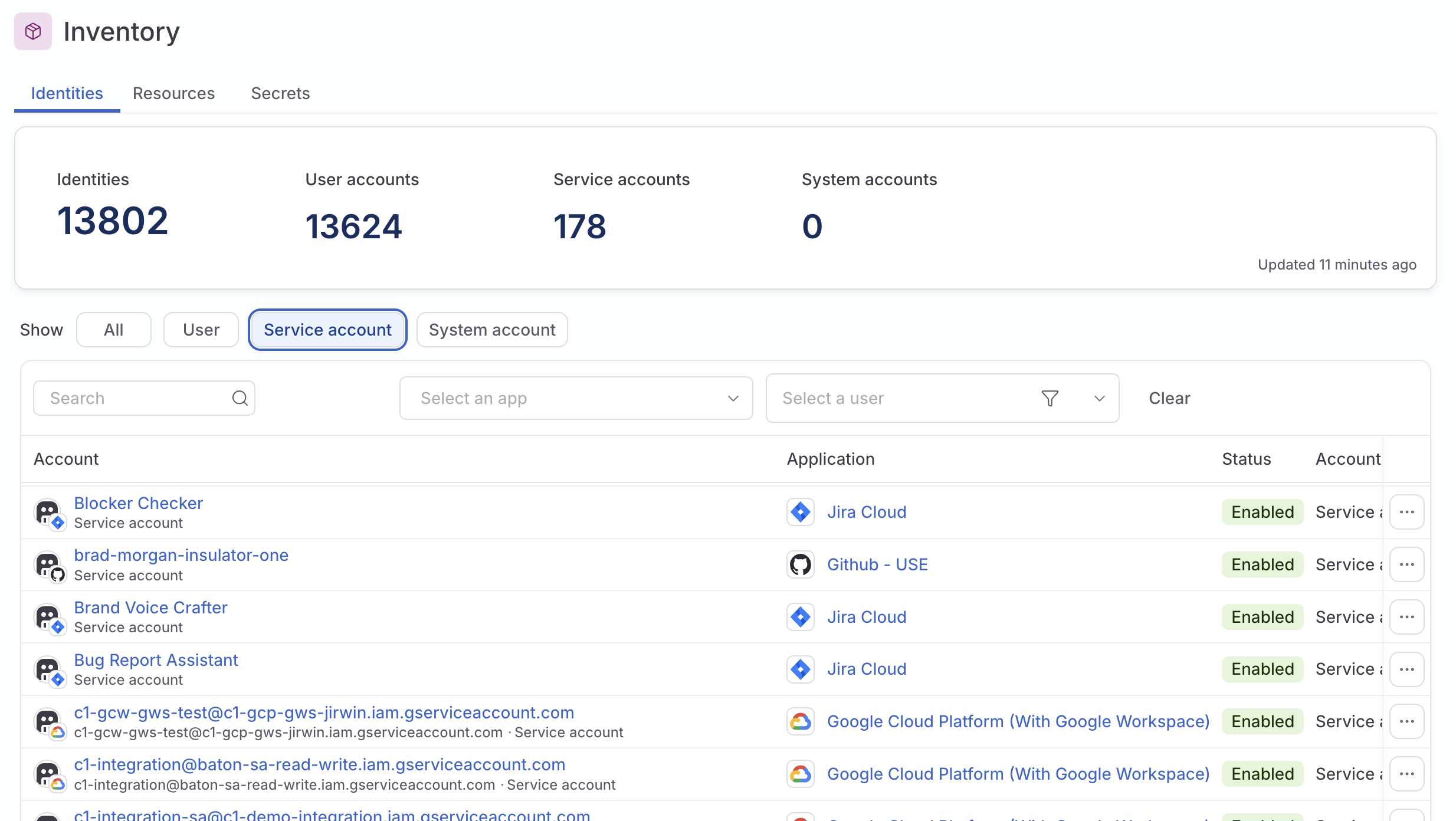
- The Identities tab shows all identities, including user, service, and system accounts.
- The Resources tab shows all resources with their associated entitlements and the number of accounts granted access to each resource
-
The Secrets tab shows secrets from the following connectors (if the connectors are configured to sync secrets):
Connector Secrets synced AWS Access keys Datadog API keys GitHub API keys Google Cloud Platform with Google Workspace API keys, service account keys Okta API tokens Oracle Cloud Infrastructure API keys Rootly Secrets Snowflake RSA public keys
Configure your integrations to pull in secrets data
Before you begin, make sure you’ve configured your integration to sync secret data. (No special configuration action is needed to sync secrets from Rootly.)Configure Okta, GitHub, AWS, Snowflake, or Datadog to sync secrets
If your Okta v2, GitHub v2, AWS v2, Snowflake v2, or Datadog v2 connector is already set up, follow the instructions below to enable syncing secrets:
That’s it! The next time the connector syncs, it will begin publishing information about secrets on the Secrets tab. You can wait for the connector’s next scheduled sync, or navigate to the connector’s page in ConductorOne and click Sync now.
Configure Google Cloud Platform to sync secrets
If your Google Cloud Platform with Google Workspace connector is already set up, follow the instructions below to enable syncing secrets:Next, grant the API Keys Viewer Role to the service account you created for ConductorOne. Navigate to IAM & Admin > IAM.
Track unused secrets
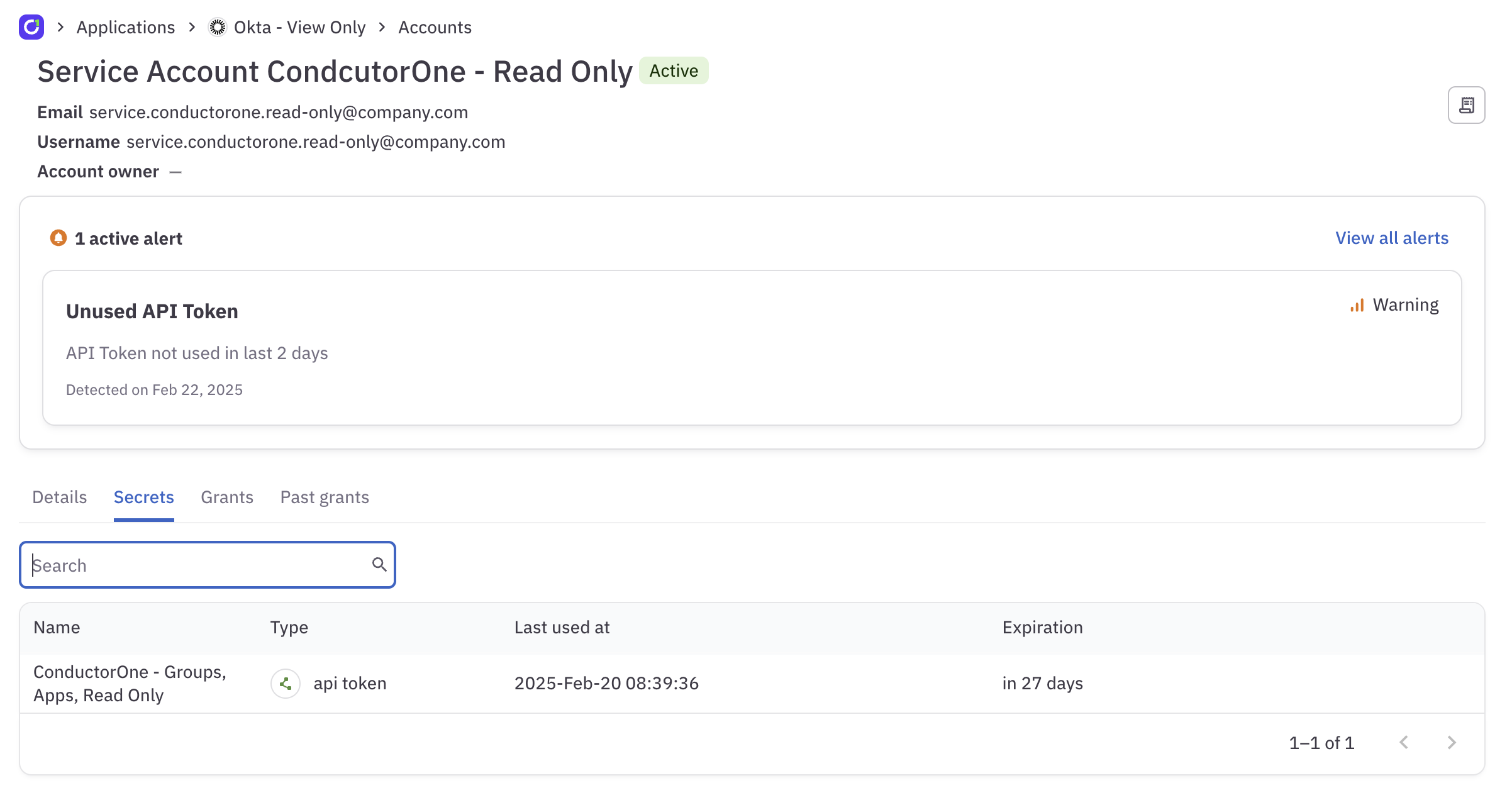
The Secrets tab shows the expiration and last used date of each API token and service account key. To view the details of an unused secret:Locate the API token or service account key you wish to investigate and click the associated name in the Identity column.