ConductorOne provides identity governance for Datadog. Integrate your Datadog instance with ConductorOne to run user access reviews (UARs) and enable just-in-time access requests.
This is an updated and improved version of the Datadog connector! If you’re setting up Datadog with ConductorOne for the first time, you’re in the right place.
This connector can sync secrets and display them on the Inventory page.*Schedules are not synced by default, but you can opt into syncing them when configuring the connector.
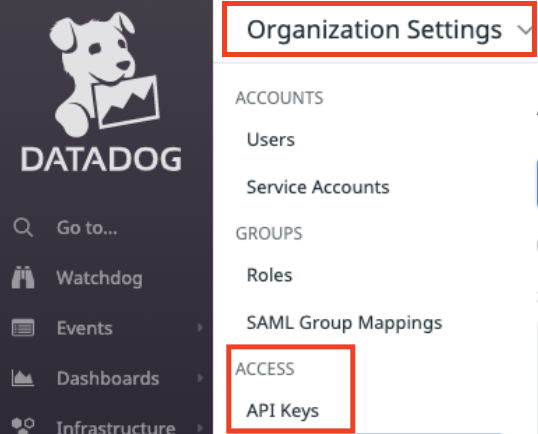
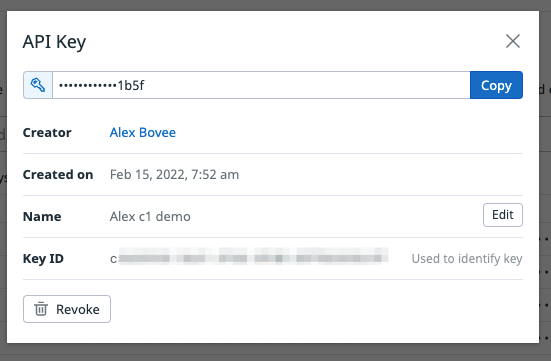
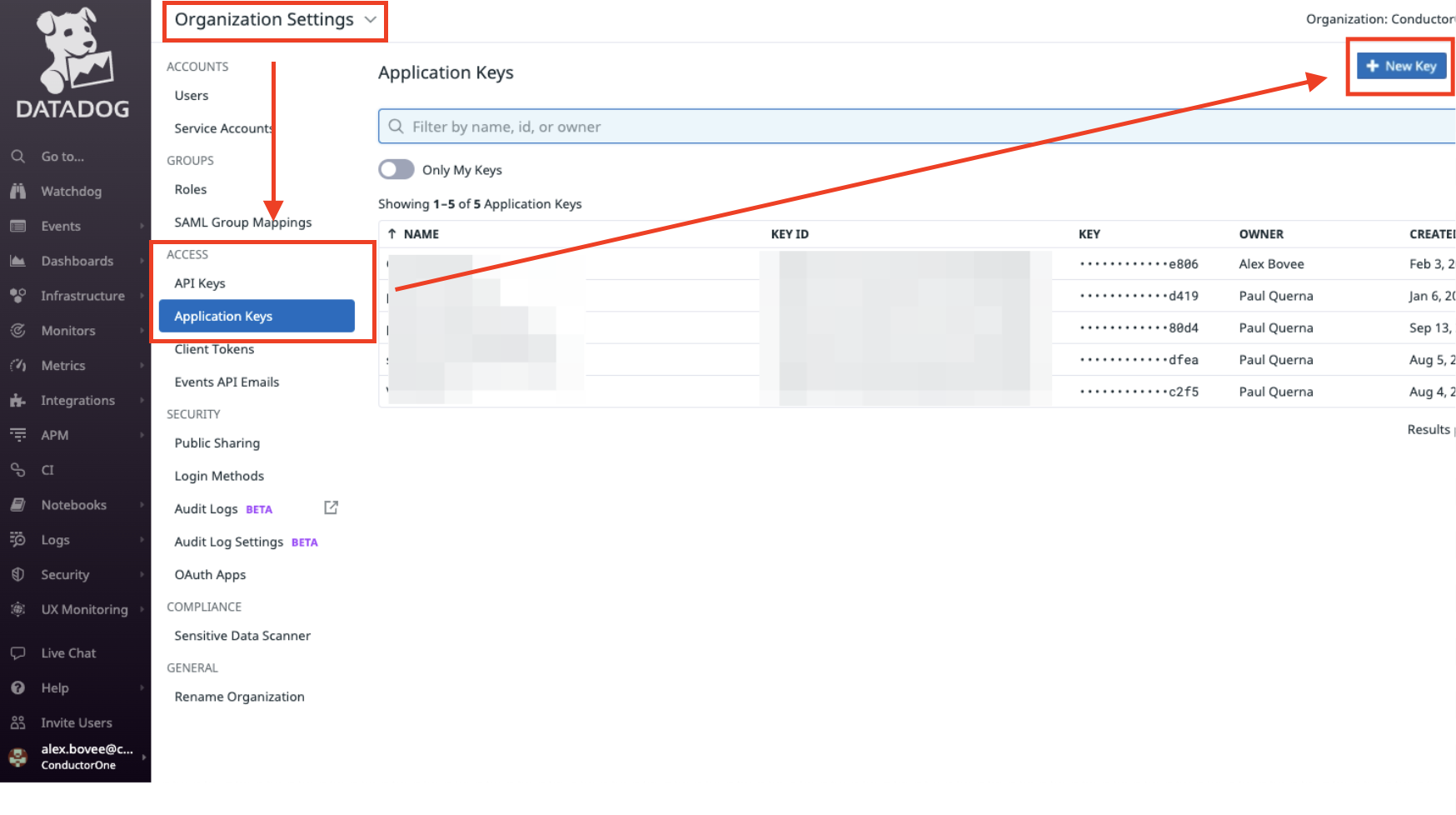
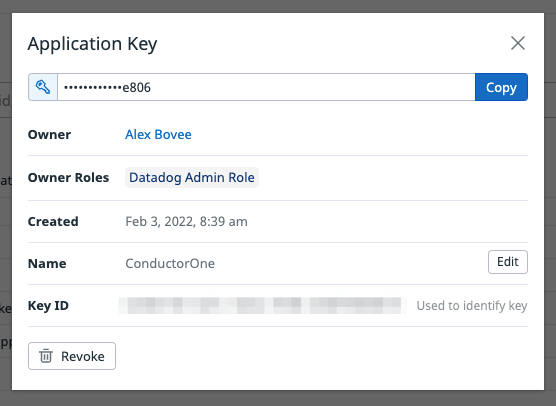
Configuring the connector requires you to pass in credentials generated in Datadog. Gather these credentials before you move on.
A user with the Connector Administrator or Super Administrator role in ConductorOne and the Datadog Admin or Datadog standard role in Datadog must perform this task.If your user has a custom Datadog role, make sure it includes the User App Keys and API Keys Read permissions.
The Connector Administrator or Super Administrator role in ConductorOne
Access to the set of Datadog credentials generated by following the instructions above
Cloud-hosted
Self-hosted
Follow these instructions to use a built-in, no-code connector hosted by ConductorOne.
1
In ConductorOne, navigate to Integrations > Connectors and click Add connector.
2
Search for Datadog v2 and click Add.
3
Choose how to set up the new Datadog connector:
Add the connector to a currently unmanaged app (select from the list of apps that were discovered in your identity, SSO, or federation provider that aren’t yet managed with ConductorOne)
Add the connector to a managed app (select from the list of existing managed apps)
Create a new managed app
4
Set the owner for this connector. You can manage the connector yourself, or choose someone else from the list of ConductorOne users. Setting multiple owners is allowed.If you choose someone else, ConductorOne will notify the new connector owner by email that their help is needed to complete the setup process.
5
Click Next.
6
Find the Settings area of the page and click Edit.
7
Select your Datadog site from the list.
8
Paste the API key into the API key field.
9
Paste the application key into the Application key field.
10
Optional. Enable Sync secrets to display them on the Inventory page.
11
Optional. Enable Sync schedules.
12
Click Save.
13
The connector’s label changes to Syncing, followed by Connected. You can view the logs to ensure that information is syncing.
That’s it! Your Datadog connector is now pulling access data into ConductorOne.
Follow these instructions to use the Datadog connector, hosted and run in your own environment.When running in service mode on Kubernetes, a self-hosted connector maintains an ongoing connection with ConductorOne, automatically syncing and uploading data at regular intervals. This data is immediately available in the ConductorOne UI for access reviews and access requests.
In ConductorOne, navigate to Integrations > Connectors > Add connector.
2
Search for Baton and click Add.
3
Choose how to set up the new Datadog connector:
Add the connector to a currently unmanaged app (select from the list of apps that were discovered in your identity, SSO, or federation provider that aren’t yet managed with ConductorOne)
Add the connector to a managed app (select from the list of existing managed apps)
Create a new managed app
4
Set the owner for this connector. You can manage the connector yourself, or choose someone else from the list of ConductorOne users. Setting multiple owners is allowed.If you choose someone else, ConductorOne will notify the new connector owner by email that their help is needed to complete the setup process.
5
Click Next.
6
In the Settings area of the page, click Edit.
7
Click Rotate to generate a new Client ID and Secret.Carefully copy and save these credentials. We’ll use them in Step 2.
# baton-datadog-secrets.yamlapiVersion: v1kind: Secretmetadata: name: baton-datadog-secretstype: OpaquestringData: # ConductorOne credentials BATON_CLIENT_ID: <ConductorOne client ID> BATON_CLIENT_SECRET: <ConductorOne client secret> # Datadog credentials BATON_API_KEY: <Datadog API key> BATON_APP_KEY: <Datadog app key> BATON_SITE: <Your Datadog site ID> # Optional: include if you want ConductorOne to provision access using this connector BATON_PROVISIONING: true # Optional: include if you want to sync schedule data from Datadog BATON_SYNC_SCHEDULES: true
See the connector’s README or run --help to see all available configuration flags and environment variables.
Create a namespace in which to run ConductorOne connectors (if desired), then apply the secret config and deployment config files.
2
Check that the connector data uploaded correctly. In ConductorOne, click Apps. On the Managed apps tab, locate and click the name of the application you added the Datadog connector to. Datadog data should be found on the Entitlements and Accounts tabs.
That’s it! Your Datadog connector is now pulling access data into ConductorOne.