

Capabilities
| Resource | Sync | Provision |
|---|---|---|
| Accounts | ||
| Groups | ||
| Folders | ||
| Roles | ||
| Projects | ||
| Organizations | ||
| Workforce Identity pools* | ||
| Workforce Identity pool providers* | ||
| Secrets - API keys | ||
| Secrets - Service account keys | ||
| Secrets - Secret Manager secrets | ||
| Buckets |
Gather Google Cloud Platform with Google Workspace credentials
Configuring the connector requires credentials from both Google Cloud Platform and the Google Workspace Admin console. You’ll complete the following steps:- Create a dedicated GCP project for the ConductorOne integration
- Enable the required APIs
- Create a service account and assign it the necessary permissions
- Download the service account’s JSON key
- Grant the service account domain-wide delegation in the Google Workspace Admin console
- Locate your primary domain and Customer ID
Create a new project
We recommend creating a dedicated GCP project for the ConductorOne integration. This keeps the integration’s permissions and audit logs isolated from your other projects.As a Google Cloud Platform with Google Workspace Super Admin, sign in to https://console.cloud.google.com.
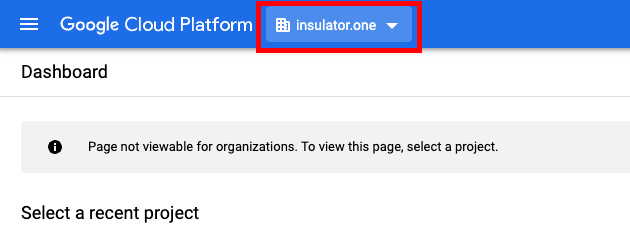
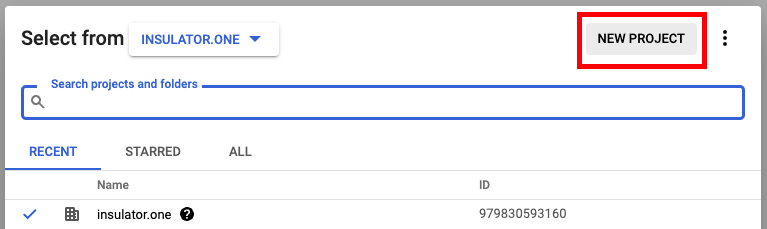
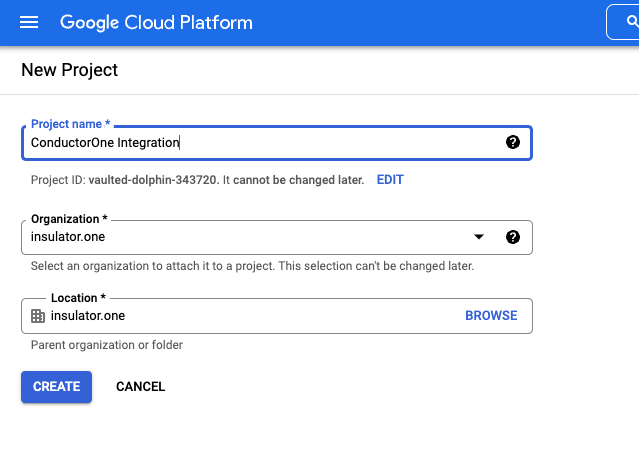
Create a new project for your organization:
- Project Name: Choose a name, such as “ConductorOne Integration”
-
Organization/Location: Choose the appropriate Organization/Location
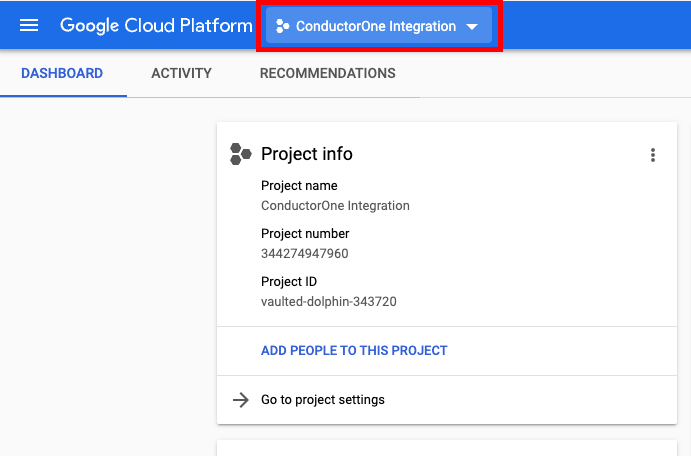
Enable the APIs
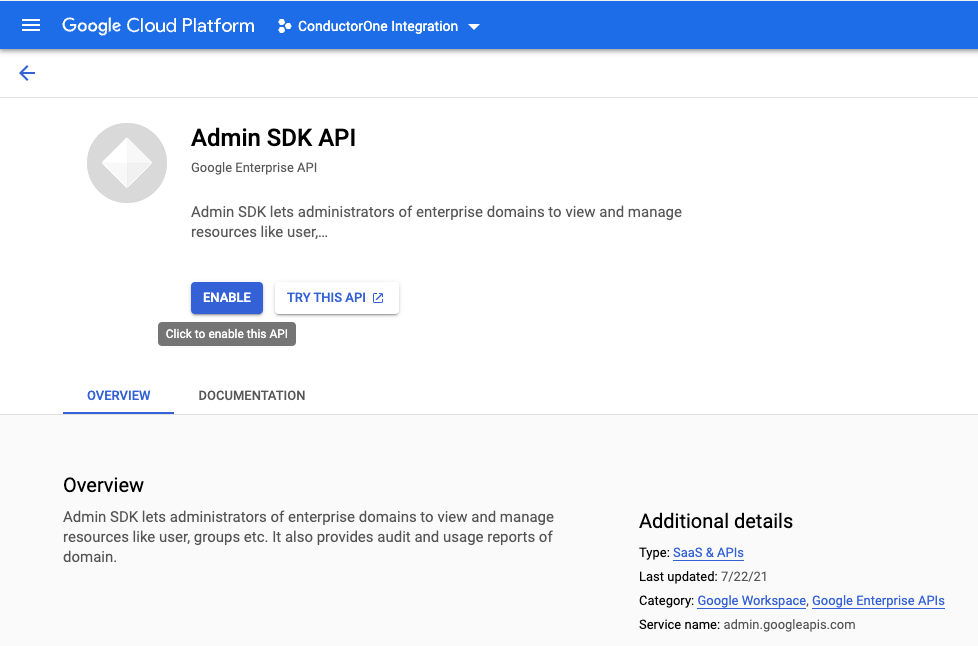
Optional: Sync secrets and buckets
Complete this section only if you want the connector to sync secrets (API keys, service account keys, Secret Manager secrets) or Cloud Storage buckets. Required organization-level role: Grant the service account theroles/cloudasset.viewer role at the organization level. This allows it to search resources across projects.
Additional APIs to enable:
Enable these APIs for each project you want to sync (or only for the projects specified in the Project IDs filter):
- Secrets - API Keys: API Keys API
- Secrets - Service account keys: IAM API
- Secrets - Secret Manager secrets: Secret Manager API
- Buckets: Cloud Storage API
Create a service account
Under Service account details, fill in the following:
- Service account name: ConductorOne Integration
- Service account description: for example, “Service account for ConductorOne Google Cloud Platform with Google Workspace Integration”
Under Grant this service account access to a project, assign the service account a role at the organization level. You can use the predefined Editor role, or create a custom role that includes only the permissions listed below.For READ access (syncing access data only), the role needs these permissions:To also provision access (READ/WRITE), add these permissions to the role:
Get credentials
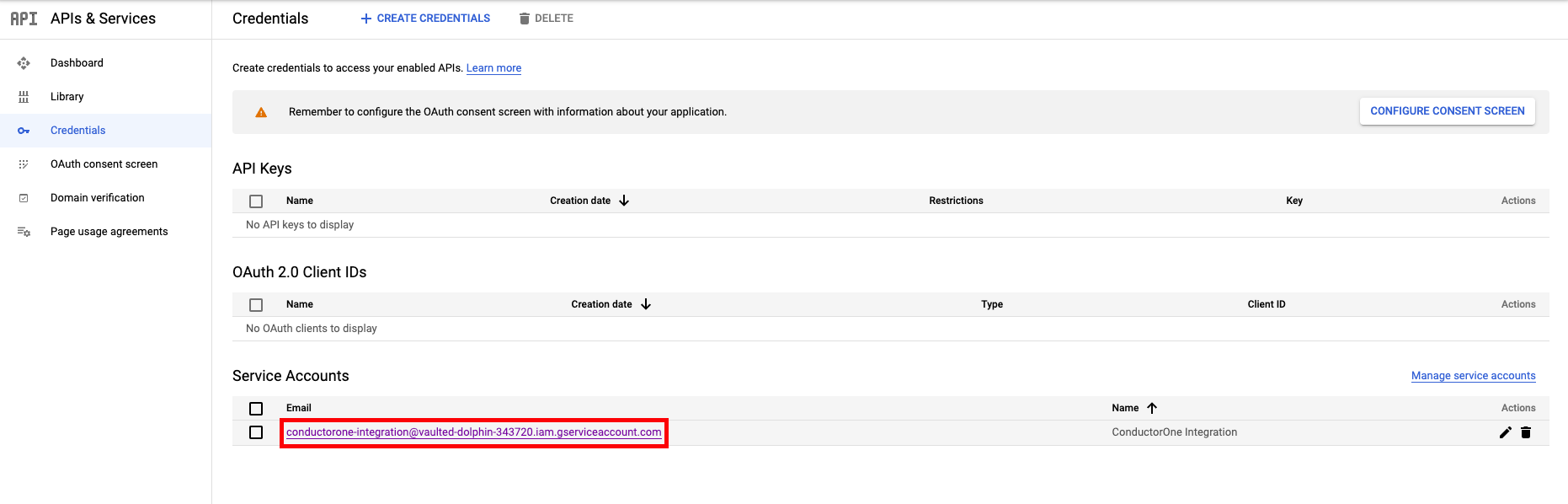
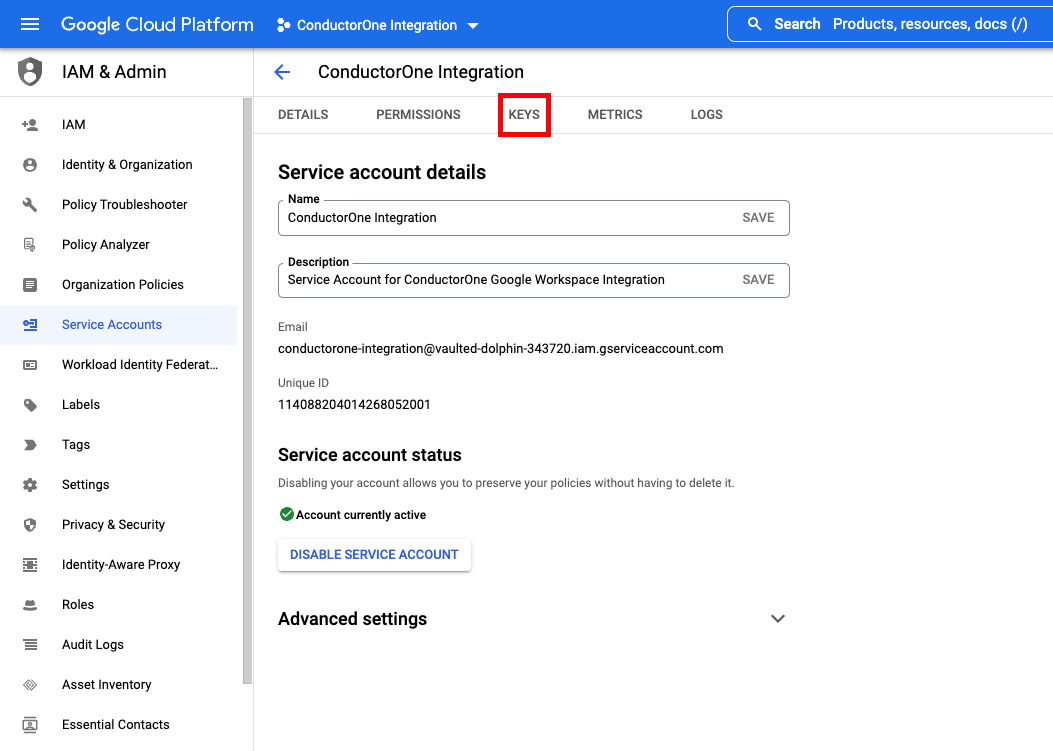
Navigate back to APIs & Services > Credentials. Under Service Accounts, locate and click the service account you just created.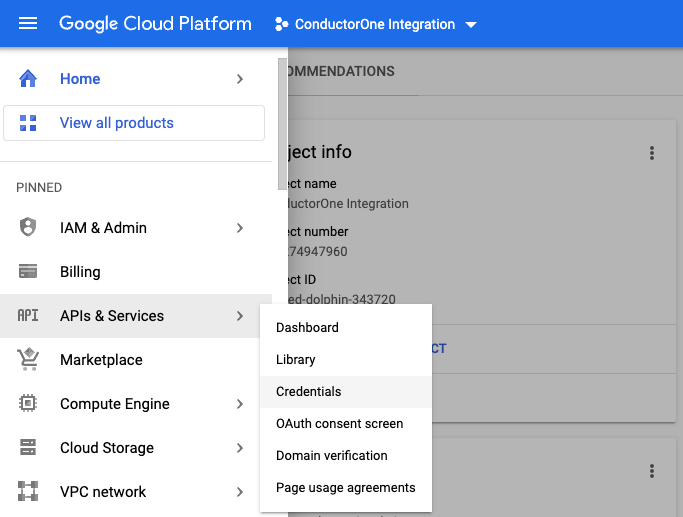
Click the service account’s email address. Locate and save the Unique ID — you’ll need it when configuring domain-wide delegation in the next section.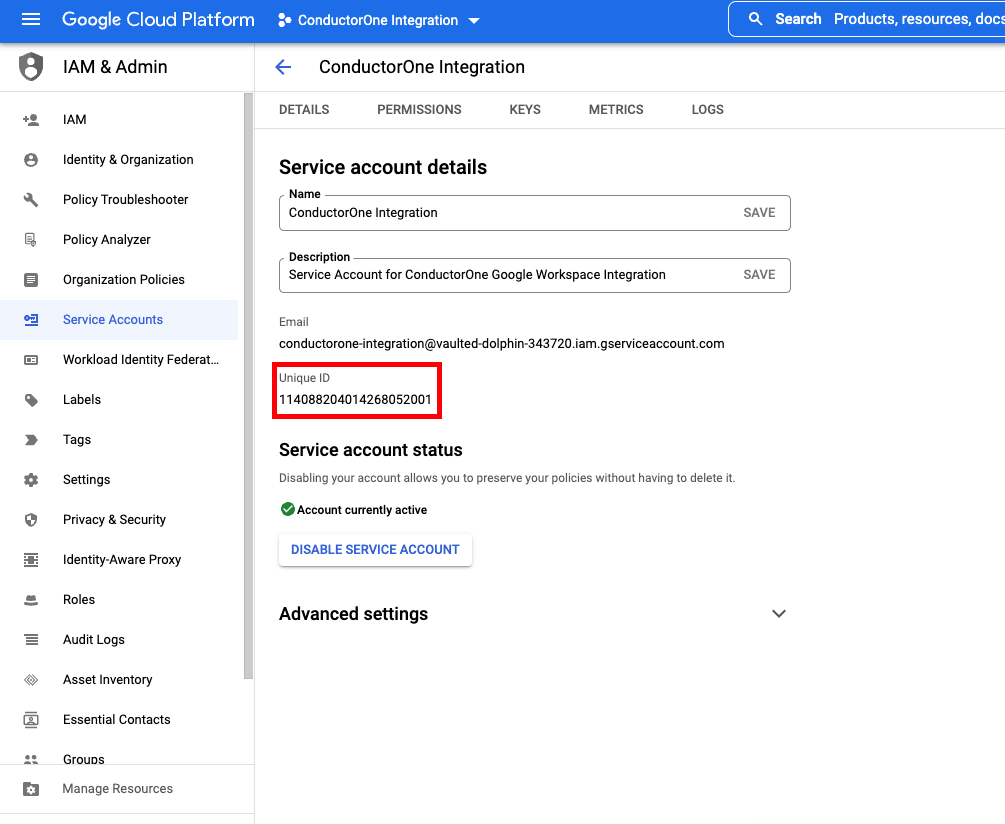
Add the service account to Google Workspace
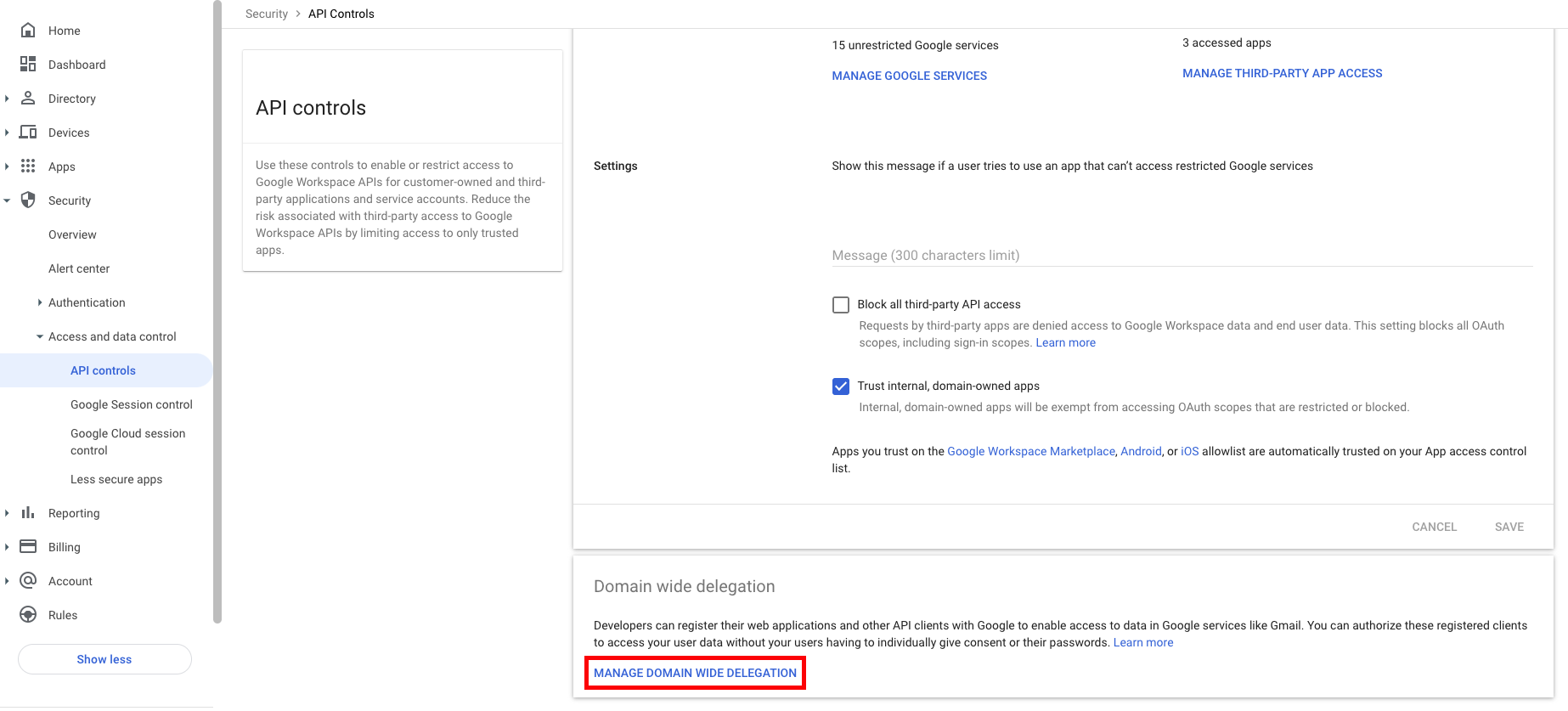
Domain-wide delegation allows the GCP service account to access Google Workspace data — directory users, groups, roles, and audit logs — on behalf of your organization. You configure this in the Google Workspace Admin console at https://admin.google.com, which is separate from the Google Cloud console.Go to https://admin.google.com as a SUPER ADMIN.
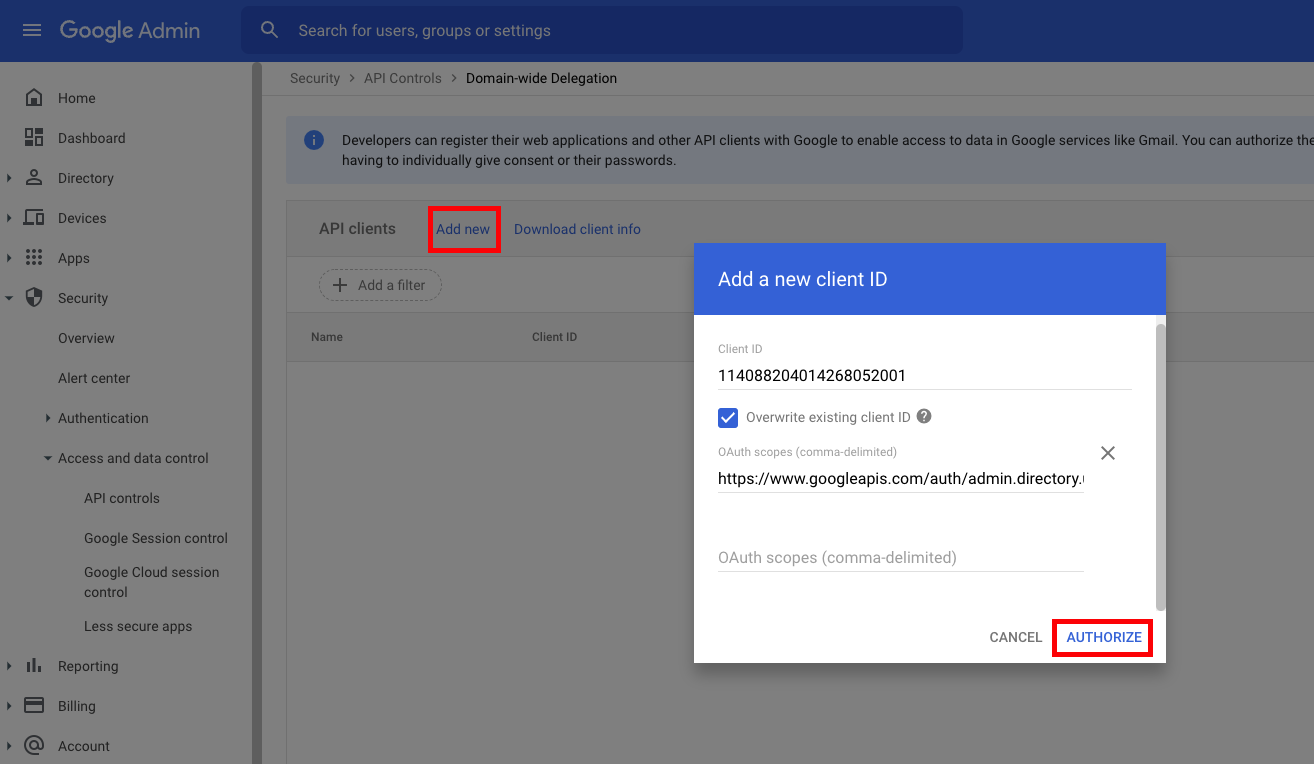
Click Add new and fill out the form:
- Client ID: The Unique ID you saved from the service account details page
-
OAuth Scopes: Copy and paste in the relevant scopes
-
Use the following scopes to give ConductorOne READ access (syncing access data):
-
Use the following scopes to give ConductorOne READ/WRITE access (syncing access data and provisioning access):
-
Use the following scopes to give ConductorOne READ access (syncing access data):
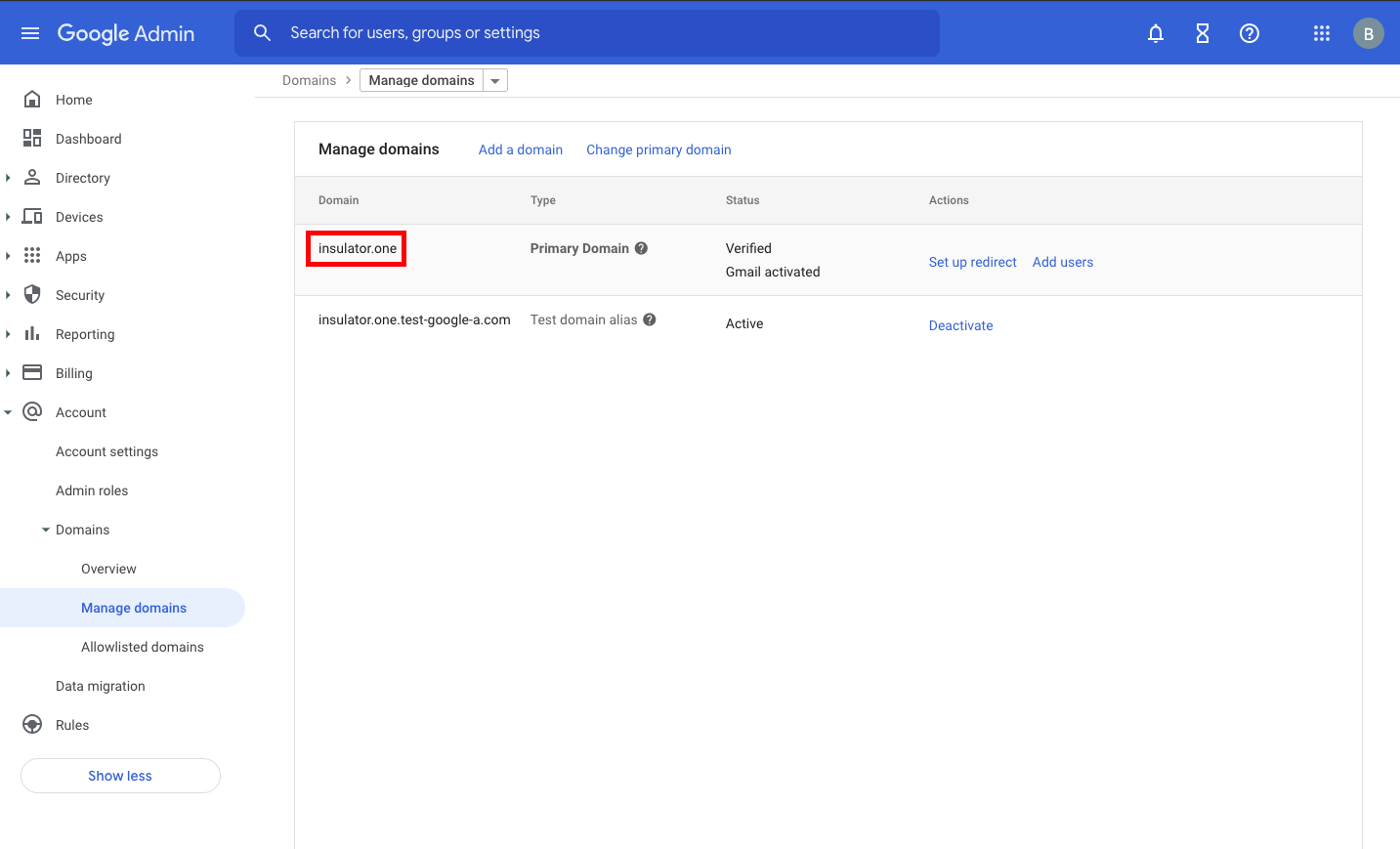
Locate your primary domain
Before moving on, confirm you have the following ready for the connector configuration:
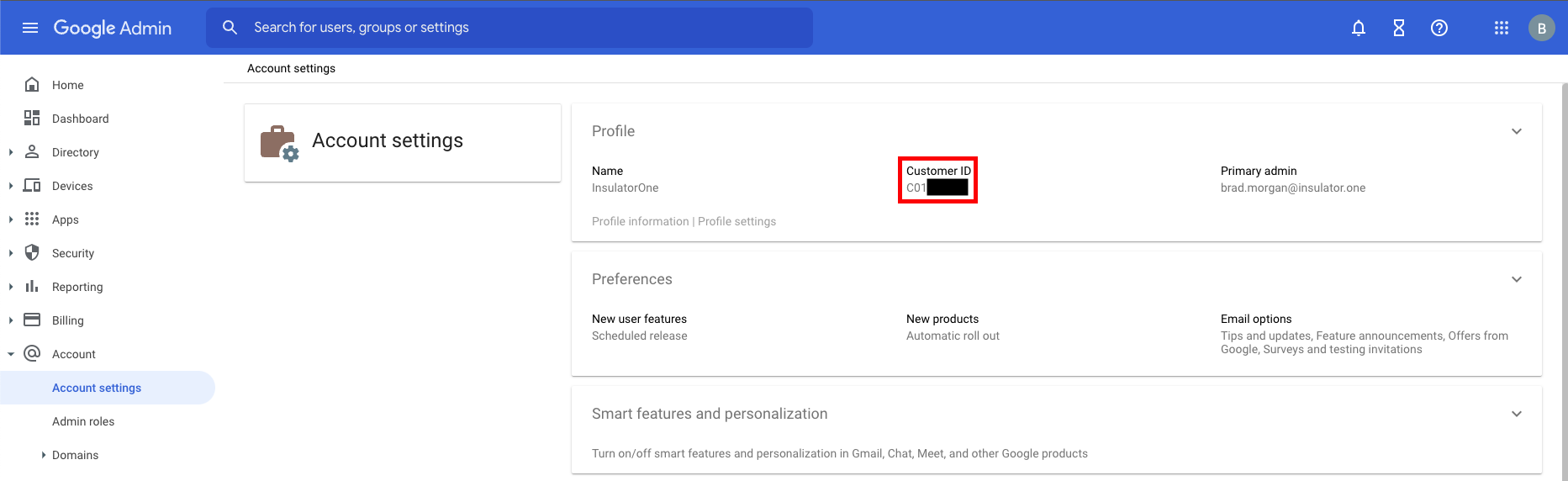
- Customer ID (from Account Settings)
- Primary domain (from Manage Domains)
- Administrator email — the email address of a super admin for your domain
- JSON credentials file — the service account key downloaded in the Get credentials section
Configure the Google Cloud Platform with Google Workspace connector
- Cloud-hosted
- Self-hosted
Follow these instructions to use a built-in, no-code connector hosted by ConductorOne.That’s it! Your Google Cloud Platform with Google Workspace connector is now pulling access data into ConductorOne.
Choose how to set up the new Google Cloud Platform with Google Workspace connector:
- Add the connector to a currently unmanaged app (select from the list of apps that were discovered in your identity, SSO, or federation provider that aren’t yet managed with ConductorOne)
- Add the connector to a managed app (select from the list of existing managed apps)
- Create a new managed app
Set the owner for this connector. You can manage the connector yourself, or choose someone else from the list of ConductorOne users. Setting multiple owners is allowed.If you choose someone else, ConductorOne will notify the new connector owner by email that their help is needed to complete the setup process.
Optional. Uncheck the box (which is checked by default) if you want to sync Google Cloud Platform default projects.
Optional. In the Project IDs field, enter a list of project IDs to limit the connector’s sync to only those projects. Be sure to enter project IDs, not project names.
Optional. Check the box to Enable Workforce Identity Federation, which allows the connector to sync Workforce Identity pools and pool providers.
- If you want the connector to provision Workforce Identity pools, enter the relevant Workforce Identity Pool ID and Workforce Identity Pool Provider ID in the relevant fields.
By default, the connector only syncs roles that are assigned to an IAM policy. These settings allow you to configure the connector to sync roles regardless of their IAM policy status.
- Optional. Check the box to Always sync custom roles.
- Optional. In the List of role IDs to always sync field, enter a list of role IDs that should be synced. Be sure to enter role IDs, not role names.
If you enabled Workforce Identity Federation, complete this additional configuration:
- In the Shared identity source area of the page, click Edit.
- Select the connector from which you want to pull identities.
- Optional. Limit the identities pulled from the connector you selected to only those with a certain entitlement by setting the entitlement.
- Click Save.