

What’s an access profile?
Everyone in your organization needs access to the software your whole team uses to stay in touch and get work done. But an employee in the Accounting department probably doesn’t need access to the specialized tools the Product Design team uses, or vice versa. For both simplicity and security, limit the list of resources each employee at your company can request by creating access profiles. Access profiles are groups of resources and entitlements. You determine the contents of each profile and who the profile is visible to. You’ll likely want to create two types of access profiles:- An access profile with the tools and access used by everyone in your company, which is visible to everyone
- Access profiles scoped to certain departments, job types, or access levels, which are only visible to the folks in those groups
Create a new access profile
Assign an owner to the access profile. Click the pencil icon next to Owners: at the top of the page and select one or more owners.Because an access profile is a resource within the ConductorOne application, naming an owner or owners makes it possible to set up review, request, and revoke policies that assign these tasks to the owner of the access profile resource.
Add entries to the profile. On the Entitlements tab, click Manage entitlements, then use the search and filter tools to zero in on the entitlements you want to add to the access profile.
Tips for adding entitlements to access profiles:1. Make sure you’re adding the right access entitlements. If you have applications that are sourced through your identity provider (IdP), be sure to add the access entitlement for the app itself, and not the access entitlement for the app via IdP, which only grants the ability to SSO into the app.Here’s an example: When Docusign is sourced through Okta, you’ll see two Docusign access credentials. To add Docusign access to your access profile, choose the Docusign credential entitlement, not the Okta app entitlement.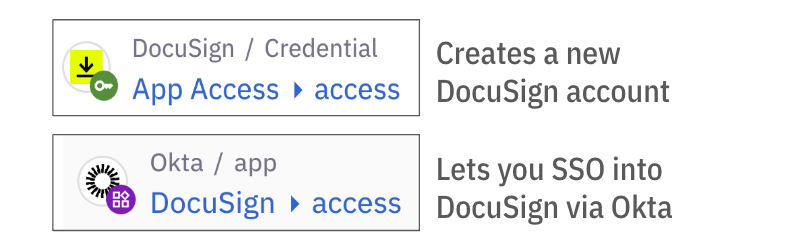
When you’ve selected the entitlements you want to add to the access profile (don’t worry, you can always adjust this list later), click Save.
Set who can view and request items from this access profile. On the Controls tab, in the Self-service requests area of the screen, click Edit.
Click to turn on Published. This makes the access profile’s contents available to the selected requesters. You can leave this toggle disabled until you’re ready to launch the access profile.
Under Visible to, set whether this access profile can be viewed and requested by everyone in your organization, or just users who are currently granted specific entitlements.If you choose the Users who have option, use the dropdown to find and add the entitlements. Only users who are currently assigned the entitlements you choose can view and request this access profile’s contents.
Use the Allow enrollment requests toggle to set whether employees can request the entire access profile with a single request.ConductorOne will automatically create individual request tickets for each entitlement in the access profile not yet granted to the employee.
Use role mining recommendations
Role mining applies data-driven analysis to reduce permissions sprawl and create well-defined access profiles. By analyzing the current access grants of your access profile’s members, ConductorOne can suggest entitlements that might be a good or even excellent match for your existing access profile, thus reducing individual access requests and better aligning access profiles with the access needs of your organization’s employees. ConductorOne assigns a confidence score to each entitlement and uses these to form recommendations:- 80% confidence or greater - This entitlement is a great fit for this access profile
- 50% to 79% confidence - This entitlement might be a good fit for this access profile, take a look at it
- 49% confidence or lower - This entitlement likely isn’t a good fit for this access profile
Add an entitlement to an existing access profile
There are two ways to add an entitlement to a access profile.Add entitlements on the access profile’s details page
You can add an entitlement to an existing access profile by navigating to the access profile’s details page and clicking Manage entitlements on the Entitlements tab. (See Step 6 of Create a new access profile for step-by-step instructions.) This method is ideal for times when you want to add multiple entitlements to a single access profile.Add an entitlement on the entitlement’s details page
Alternatively, you can add an entitlement to an existing access profile from the entitlement’s own details page. This method is ideal for times when you want to add a single entitlement to multiple access profiles.On the Managed apps tab, navigate to the entitlement you want to add to an access profile:
- Click the application’s name
- Click the Entitlements tab
- Locate the entitlement you want and click its name
Use the Access profiles dropdown to select one or more access profiles you want to add the entitlement to.
Update a current access profile holder’s grant
If profile requests are allowed, any newly added entitlement will be included in future grants of the full access profile, but the entitlement will not be automatically granted retroactively to users who were previously granted the access profile. To manually add the new entitlement to a current profile holder’s access:Locate the newly added entitlement in the list of entitlements included in the access profile and click the … (more actions) menu.
Any users who have been granted the full access profile but do not currently have access to the entitlement display Not granted in the Status column. Click Request for the users who you want to receive access to the new entitlement.You can also click Request for all to request access for all profile holders who do not have the entitlement.