

Automation structure
Here’s a sample automation’s details page: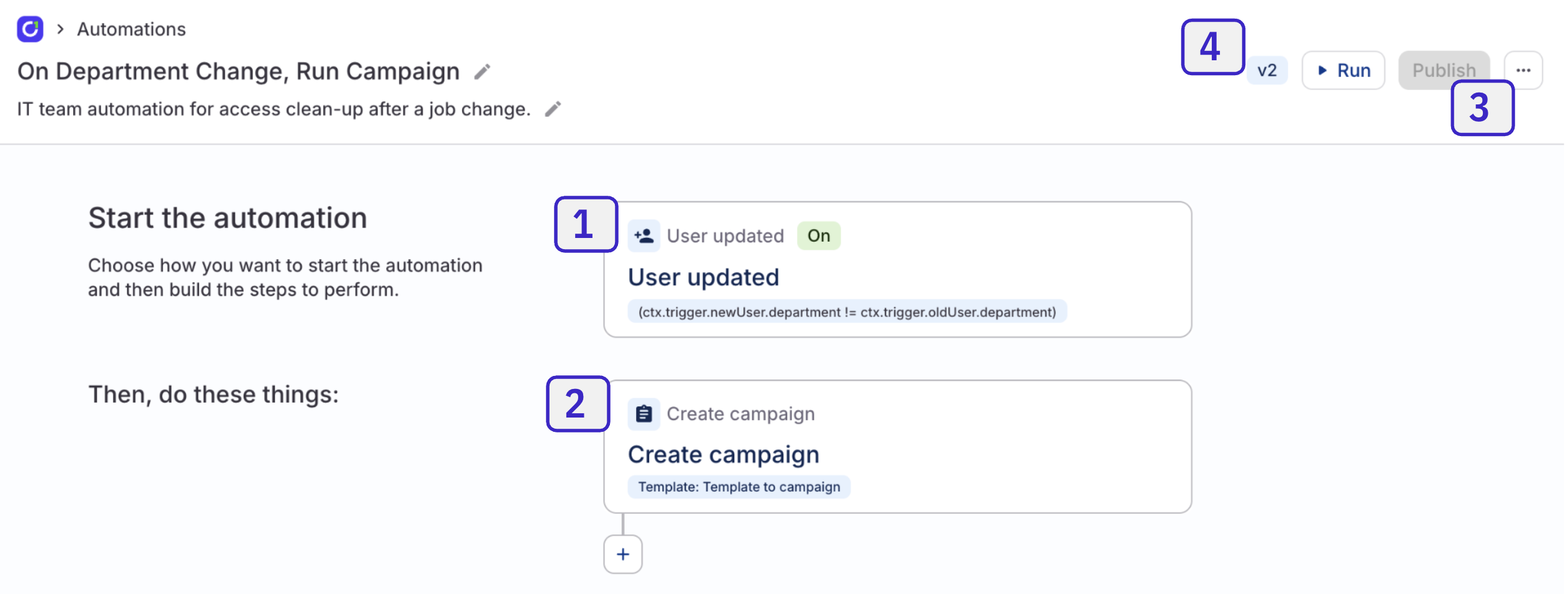
- Automation trigger: This determines what causes an automation to run. This automation’s trigger is turned on, so it will run automatically. You can also manually start an automation run at any time by clicking Run at the top of the page.
- Automation steps: These are the actions your automation performs. This automation has only one step, but you can add as many as you need.
- Publication status: Each automation is in either a draft or published state. Here, the Publish button is greyed out to indicate that this automation is published.
- Version number: Automations are versioned (this one is v2), and you can restore a previous version of an automation if necessary.
Create a new automation
Click Set automation trigger and choose the event that will trigger this automation. Refer to the automation triggers reference for details on the available triggers.
Set the Automation toggle to On if you want to start triggering the automation when the event you’ve selected occurs as soon as the automation is published. You can also leave the toggle off for now, if desired.Automations in their draft state do not run automatically, even if this toggle is enabled.
Click Add step and select the first step for the automation. Refer to the automation steps reference for details on the available automation steps.
Click + Add step again and repeat the process to add additional steps, as needed.If you need to reorder the automation steps, hover over the step and use the arrow keys.To delete a step entirely, hover over the step and click the trash can icon.
To test your automation, click Run draft at the top of the page.You’ll be asked to provide context for the test run, and will see a panel showing the details of the execution as it proceeds.
Fine-tuning your automation
On the Advanced tab of each automation step’s setup drawer, you can add a CEL expression that instructs the automation to skip the step if a condition is met. This section also displays the step’s Step ID, which is used to reference the current step’s output in later steps. On the Available data tab, you’ll find data gathered from previous steps in the automations, which can be used to write CEL expressions to refine or define conditions in later steps. See workflow expressions for the full CEL syntax available in automations, including thectx object, {{ }} template syntax, and how to reference trigger data and step outputs.
Editing an automation
When first published, new automations are marked v1. If you make edits to the automation, it will create a new draft version of the automation, which you can test and publish (as v2) when you’re ready. To see all versions of the automation, click the … (more actions) menu and select Show version history. You can restore a different version of the automation from this list.Get agent help building automations
The Automation Architect is an AI-powered agent that creates automations for you based on your prompts. Describe the workflow you want to automate, and the agent translates your prompt into a series of automation steps, complete with the appropriate trigger and actions. This makes building automations faster, especially for complex workflows that would otherwise require careful manual setup. On the Automations page, click Create with Copilot to get started.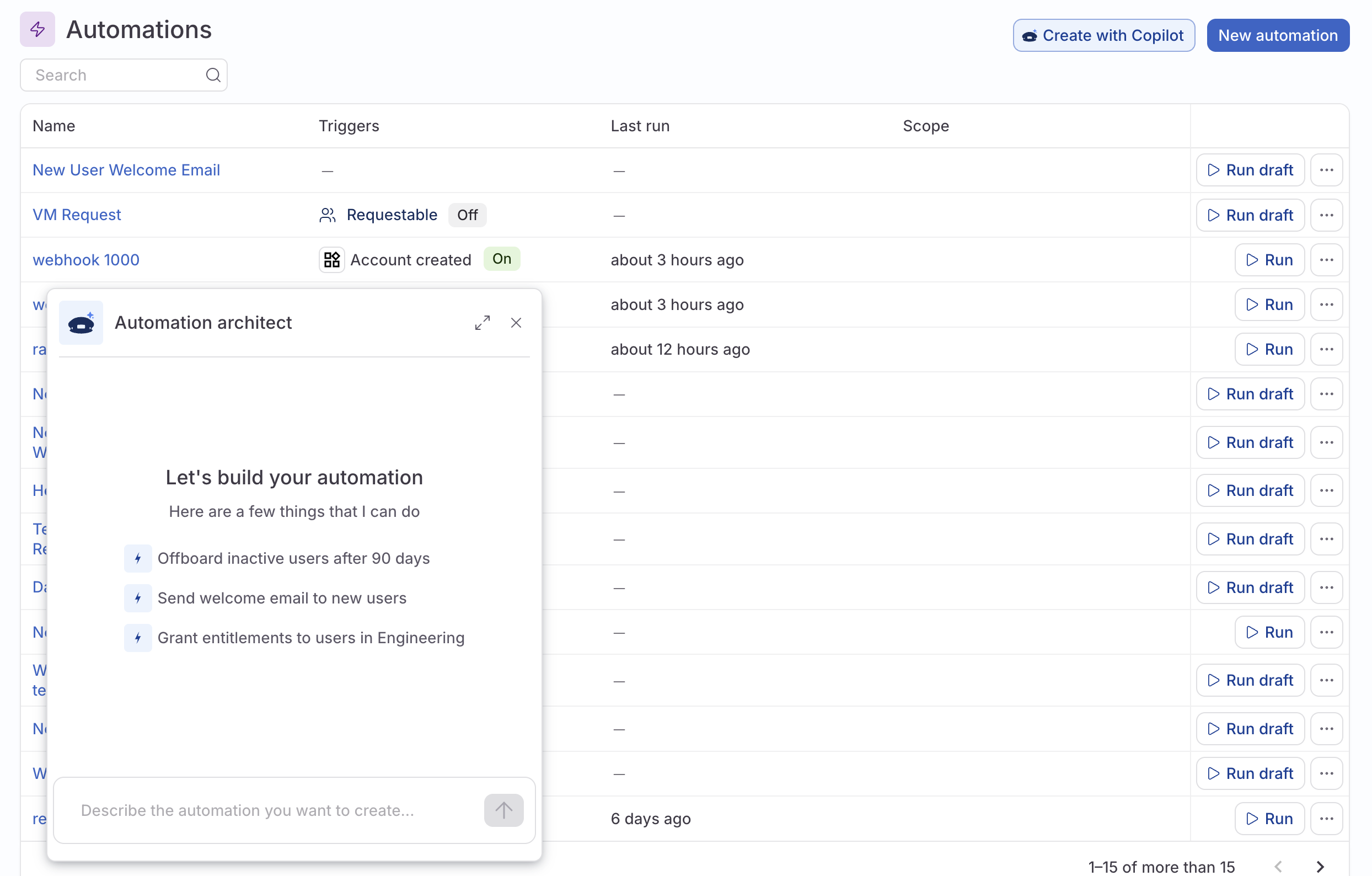
App-specific automations
You can create and manage automations that are scoped to a specific app on that application’s Automations tab. Use app-scoped automations when the workflow only applies to a single application, such as cleaning up unused access in Salesforce or provisioning accounts in a department-specific tool. To create an app-specific automation:Click New automation, then follow the steps in Create a new automation.
Unused access automations
Unused access automations are tailored to help you manage unused app access. These automations fire when a user has not logged into their app account for the length of time you specify. Create and manage unused access automations in the Unused access section of the app’s Controls tab. This section shows the number of accounts that have not been accessed in the past 30 days (click through to see the full list of these accounts on the Access explorer page), and is the home of controls for quickly creating an automation for unused access.
Choose from the list of automation templates:
- Send a notification after 30 days
- Revoke access after 45 days
- Create a custom usage-based automation from scratch
The automation draft is set up for you. Click the Unused access trigger, review the details and make any adjustments.You can choose how to treat accounts with no login activity, set how to perform the initial runs of the automation, and narrow the automation’s scope, if desired.

Features related to automations
- Requestable automations: Let users trigger workflows from the self-service catalog, with approval flows and form inputs.
- Functions: Extend automations with custom TypeScript logic for use cases that go beyond built-in steps. See using Functions in automations.
- Workflow expressions: The
ctxobject,{{ }}template syntax, and data flow patterns for CEL in automations. - Triggers reference: Detailed configuration for all 11 trigger types.
- Steps reference: Detailed configuration for all 15 step types.
- Expressions examples: Copy-paste CEL patterns for common scenarios.