

What are profile types?
In ConductorOne, profile types provide the foundation for managing user data with precision and efficiency. They offer a powerful way to segment your workforce and ensure that your administrators and reviewers only see the information relevant to a specific user group. Profile types solve the challenge of managing diverse user populations (like full-time employees, contractors, and vendors) within a single system. Instead of applying every possible user attribute to every single person, profile types allow you to select a specific, tailored set of attributes (like work_location or contract_end_date) that are relevant only to that group. This eliminates noise and makes user profiles cleaner and easier to read. Profile types also enable powerful filtering and segmentation when creating User Access Review (UAR) campaigns and policies. You can build rules based on both the profile type and the specific attributes within it.What kind of profile types should I create?
Profile types are most commonly used to segment different broad categories of employees. Most organizations will find it useful to create one profile type for Full-time employees and another for other people associated with the organization, such as:- Contractors
- Retirees
- Seasonal or temporary employees
- Interns
- Partners
How do custom attributes reach user profiles?
Custom attribute data doesn’t appear on a ConductorOne user automatically. It flows through a series of steps, and each step must be configured for the data to reach the user’s profile. Understanding this chain helps you troubleshoot when an attribute you expect to see isn’t showing up. Here’s the full lifecycle of a custom attribute:- Connector syncs data from the source system. When a connector syncs with a source application (like Workday, Active Directory, or Okta), it pulls user account data into ConductorOne. This data is stored on the user’s account within the connected application. Custom fields from the source system are included in the account’s profile as key-value pairs.
-
You create an attribute mapping. In the Attribute manager, you create a custom attribute and tell ConductorOne which application and which field to pull the data from. This is how ConductorOne knows, for example, that “Employment Type” should come from the
employmentTypefield on the user’s Workday account. - You bind the attribute to a profile type. When you create or edit a profile type, you select which custom attributes belong to it. This binding controls which attributes appear on users assigned to that profile type.
- You assign users to the profile type. Using a user automation rule or manual assignment, you define which ConductorOne users belong to the profile type. Users who aren’t assigned to any profile type with the attribute won’t see that attribute on their profile.
- The attribute appears on the ConductorOne user. After the next directory sync, the attribute value flows from the account through the mapping and profile type, and appears in the Profile attributes section of the ConductorOne user’s page. From here, it can be used in policies, access review campaigns, CEL expressions, and account correlation.
Example: Workday cost center for policy routing
Suppose you want to use a “Cost Center” field from Workday to route access requests to the right approver.Make sure your Workday connector is set up and syncing. After a sync completes, the Cost Center value is stored on each user’s Workday account.
Navigate to Directory > User data sources > Attribute manager and click Add attribute. Select Custom, name it “Cost Center”, and use Direct mapping to select your Workday application and the
costCenter field. Click Create.Navigate to the Profile types tab and select (or create) the profile type you want to associate this attribute with, such as “Full-time employees”. On the Details tab, click Edit, select the Cost Center attribute, and click Save.
On the profile type’s User automation tab, set up a rule to assign the appropriate users. For example, you might match all users with an
employmentType of “Full-Time”.Example: Active Directory attribute for account correlation
Suppose your organization stores GitHub usernames in a custom Active Directory attribute calledgithubUserName, and you want ConductorOne to use that attribute to match users to their GitHub accounts.
Make sure your Active Directory connector is set up and syncing. After sync, the
githubUserName value is available on each user’s AD account.Navigate to Directory > User data sources > Attribute manager and click Add attribute. Select Custom, name it “GitHub Username”, and use Direct mapping to select your Active Directory application and the
githubUserName field. Click Create.Add the GitHub Username attribute to the appropriate profile type and make sure the relevant users are assigned to it.
After the next sync, the GitHub Username value appears on each assigned ConductorOne user’s profile. You can now use this attribute in an account correlation rule to automatically match ConductorOne users to their GitHub accounts.
Troubleshooting missing attributes
Attribute mapped but not visible on users. The most common cause is that the attribute isn’t bound to a profile type, or users aren’t assigned to the profile type that has the attribute. Check both the profile type’s Details tab (for attribute bindings) and Assigned users tab (for membership). Changes don’t appear immediately. Attribute values update during connector sync and directory merge cycles. After making configuration changes, you can trigger a sync manually from the application’s details page or wait for the next scheduled sync. Legacy profile type behavior. Tenants created before November 2025 have an auto-created Legacy profile type that contains all users. If your tenant has a Legacy profile type, its custom attributes apply to all users as a baseline. When you create new profile types and assign users to them, those profile types take priority over the Legacy type for the attributes they define. Users who aren’t assigned to any non-Legacy profile type continue to receive attributes from the Legacy type. Custom versus standard attributes. Most standard user attributes (likeuser.department or user.jobTitle) are available in CEL expressions. However, only custom attributes can be bound to profile types. If you need a custom attribute that contains the same data as a standard attribute, create a custom attribute mapping that points to the same source field.
Create a new profile type
Profile types allow you to group users and define the specific set of attributes relevant to that group. Follow these steps to create a new profile type.Before you begin
Make sure you’ve mapped the custom attributes you want to associate with the profile type. You can add additional attributes any time.Step 1: Set up the new profile type
Upload an icon to associate with the profile type across ConductorOne. Click Upload image and select an image of at least 200x200px in either PNG, JPED, or WebP format.
Step 2: Add relevant attributes to the profile type
Next, select the specific user attributes that should be visible and manageable for users assigned to this profile type.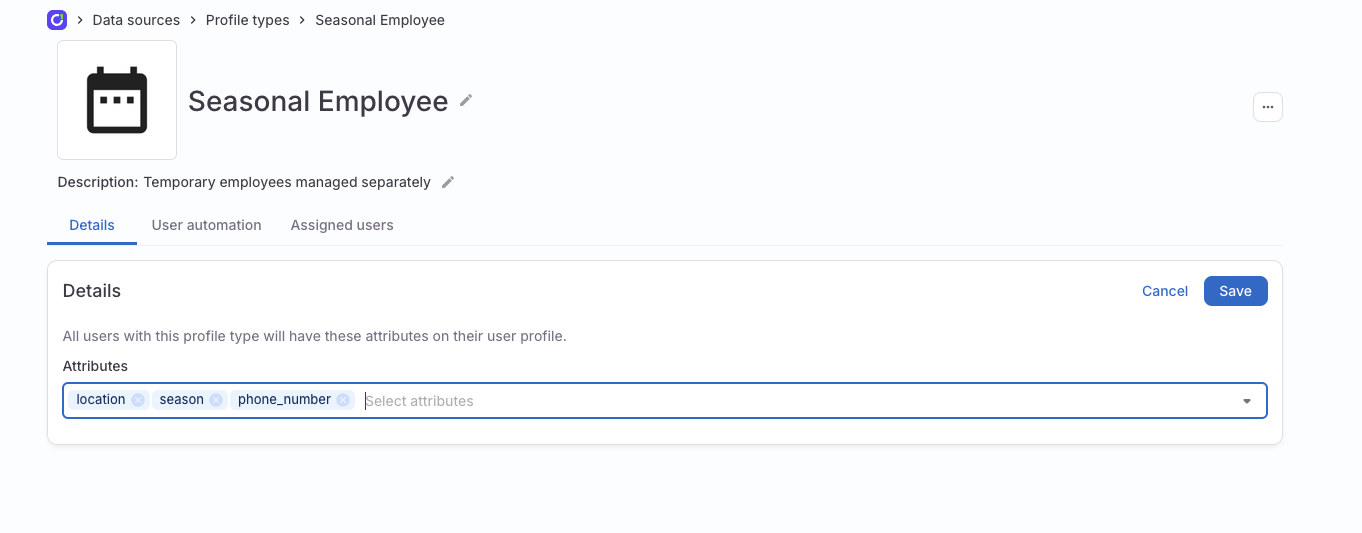
Select the attributes that are associated with this profile type. Only the attributes you select will be visible on the Profile attributes section of users who are assigned this profile type.
Step 3: Assign users to the profile type
Finally, define the criteria ConductorOne will use to automatically assign users to this profile type. You can also add users manually, if needed.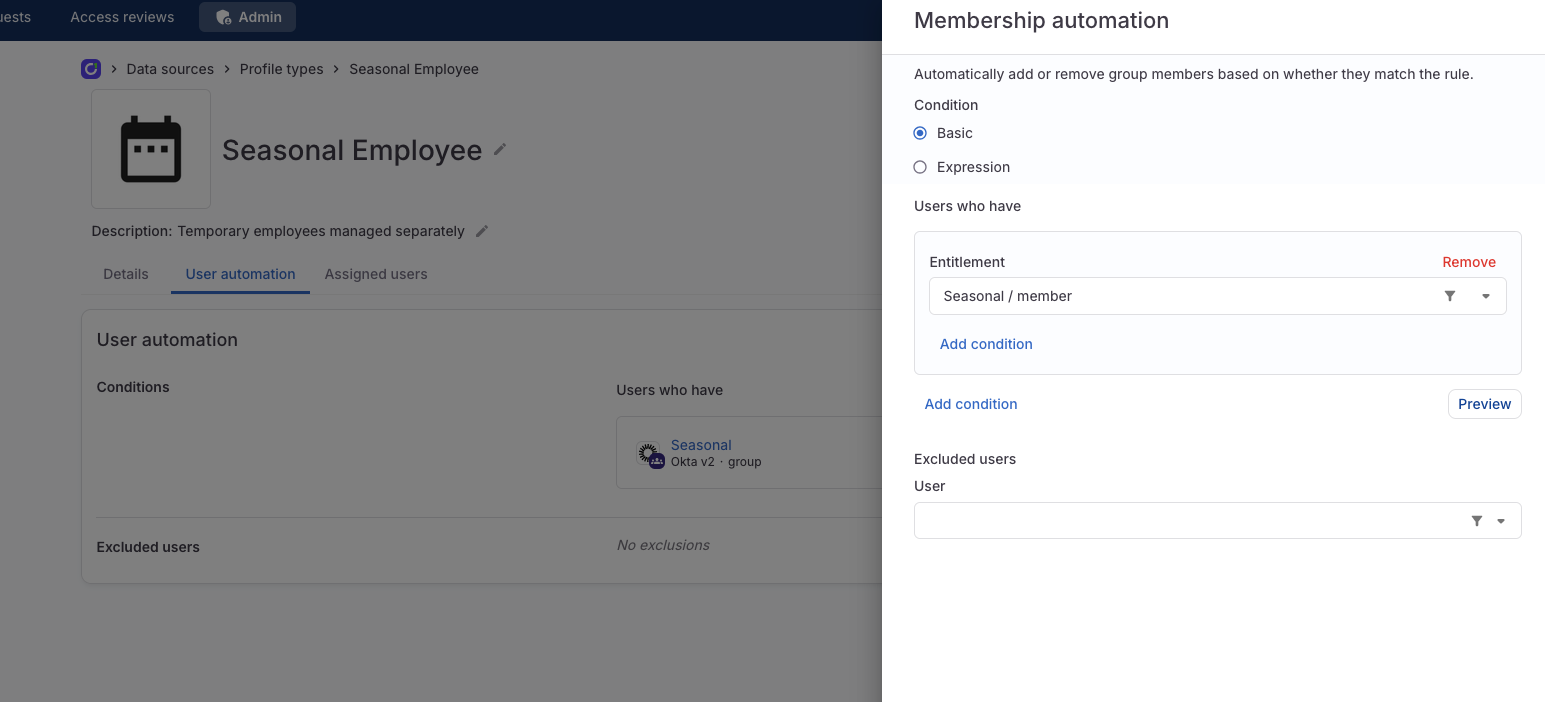
Choose how to form your user automation rule:
- Use the Basic condition builder to construct a rule from a combination of entitlements and profile attributes (see note below on which profile attributes are supported), with the option to add and and or statements to refine the rule.
- Use the Expression field to to compose a CEL expression that describes the membership rule. Click Preview to check the syntax of your CEL expression. Note that not all users who match the membership rule will be shown immediately when you click Preview.
Optional. In the Excluded users field, add the names of any users who should be excluded from this group, even if they match the membership rule.