What are accounts?
An application’s Accounts tab shows you a list of all the accounts inside the application, the status of each account, its type (user, service, or system), the account owner, and the roles the account has in the app.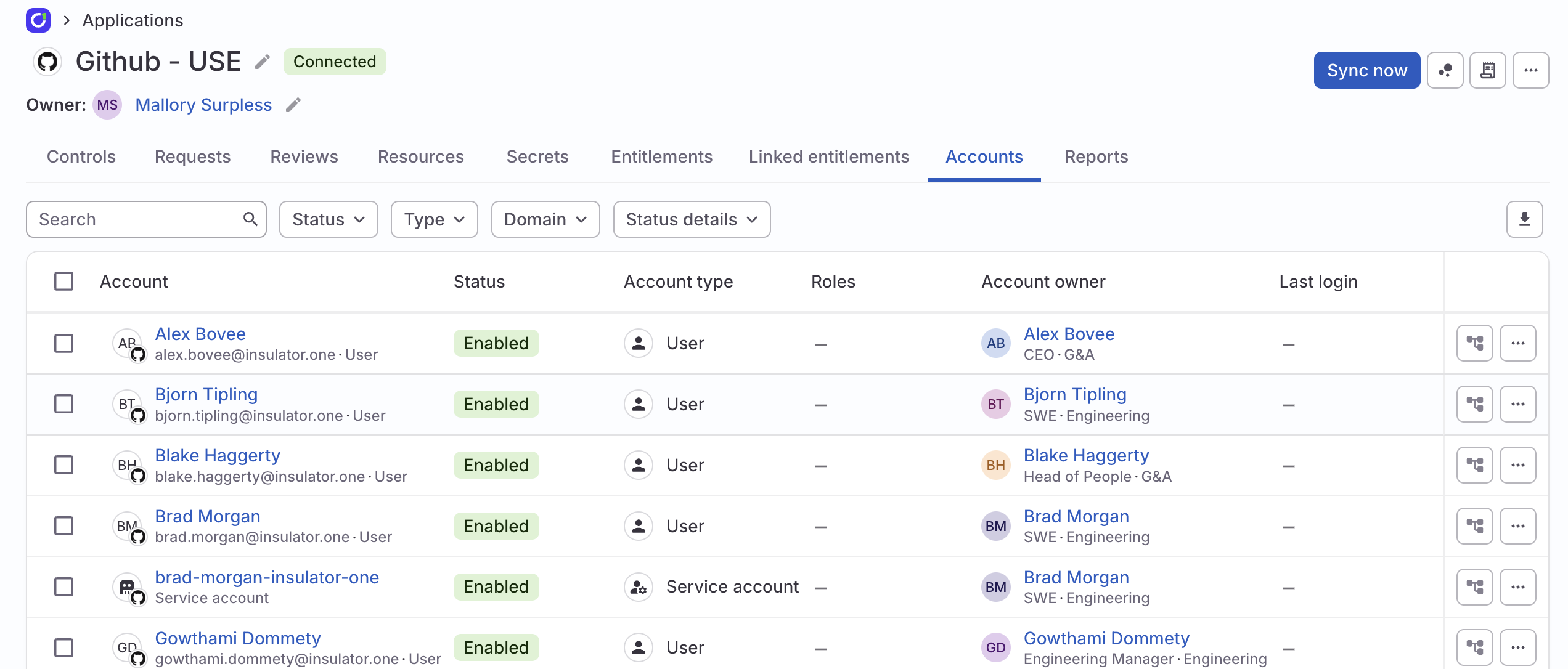
Account owners
When app accounts are ingested, ConductorOne automatically attempts to match them to ConductorOne users (the humans in your organization). These mappings are shown in the Account owner column.Auto-match accounts with users
By default, ConductorOne uses email accounts and usernames to match accounts to users. This is called Narrow mapping. If users and accounts aren’t matching automatically when using narrow mappings, you can switch to using Broad mapping for the application, which also attempts to match first and last names. To change the mapping level:Select the type of mapping you want to use:
- Narrow: (Default) Accounts are mapped using email addresses and usernames.
- Broad: Accounts are first mapped using email addresses and usernames, but if these cannot be found or matched, accounts are then mapped using the user’s first and last name.
Manually set account owners
If automatic matching can’t be performed, or if some minor clean-up is required, you can set an account owner manually:Set account owners in bulk
To set or update account owners for multiple accounts at once:Set account types
Accounts are set to User by default. Use the Account type control to designate service accounts and system accounts, which can then be included in or excluded from your access review campaigns as needed. To set an account type:
The updated account type is now shown in the Account type column.
Generate an app accounts report
Generate a report of app accounts including each account’s status, type, roles in the app, account owner, and associated email address by clicking the Generate CSV icon at the top right corner of the table. Your report will be prepared for you and posted in the downloads center at the top of the page when ready.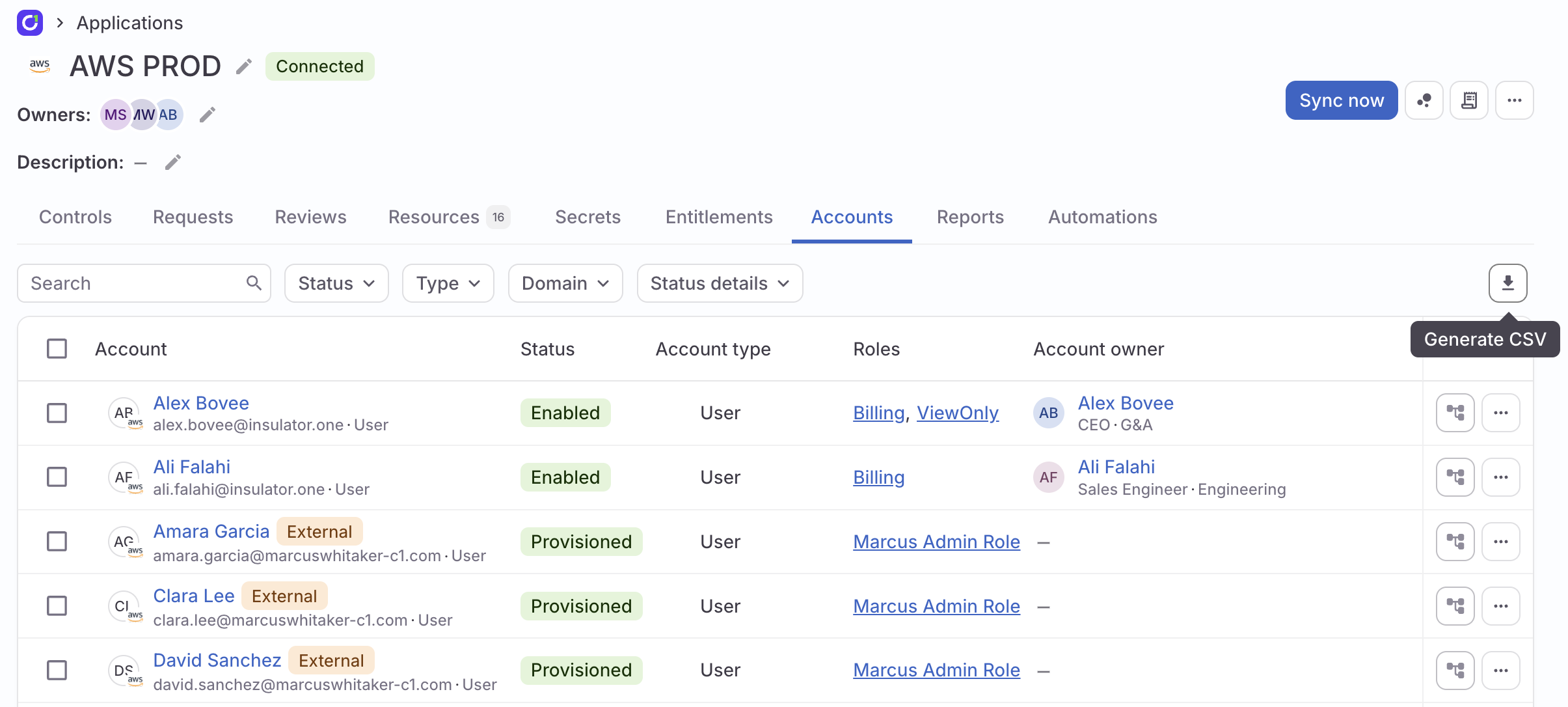
Account details
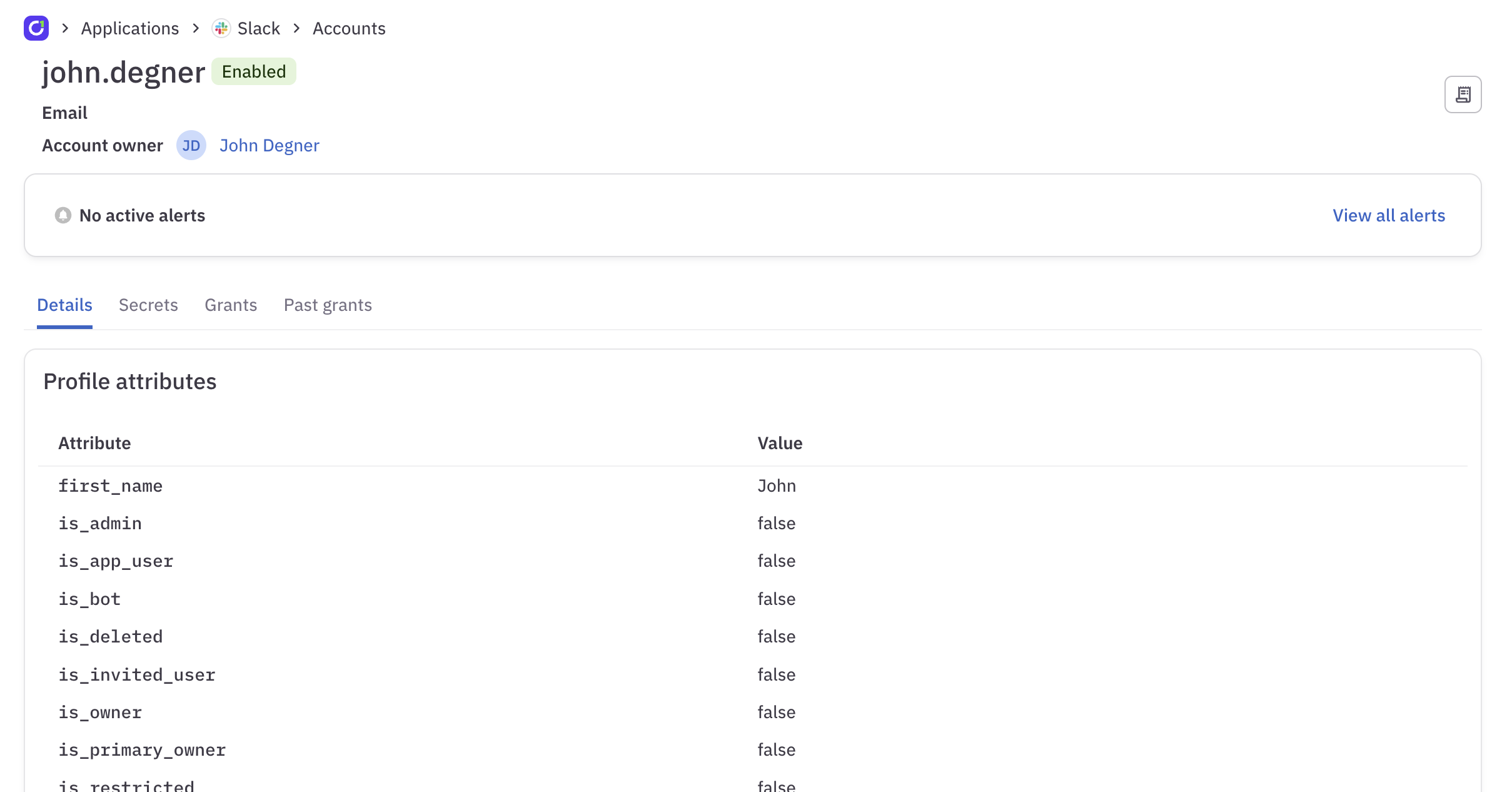
Click any account name on the Accounts tab to view that account’s details page. On this page you’ll find:- Details: The account’s profile attributes, which are automatically ingested from the
- Secrets: Any secrets (such as API tokens) associated with the account
- Grants: The entitlements in this application that this account currently has access to
- Past grants: The entitlements in this application that this account formerly had access to